
Last updated on:
Updated on:
Available variants


Product Overview Section with Add to Bag Feature
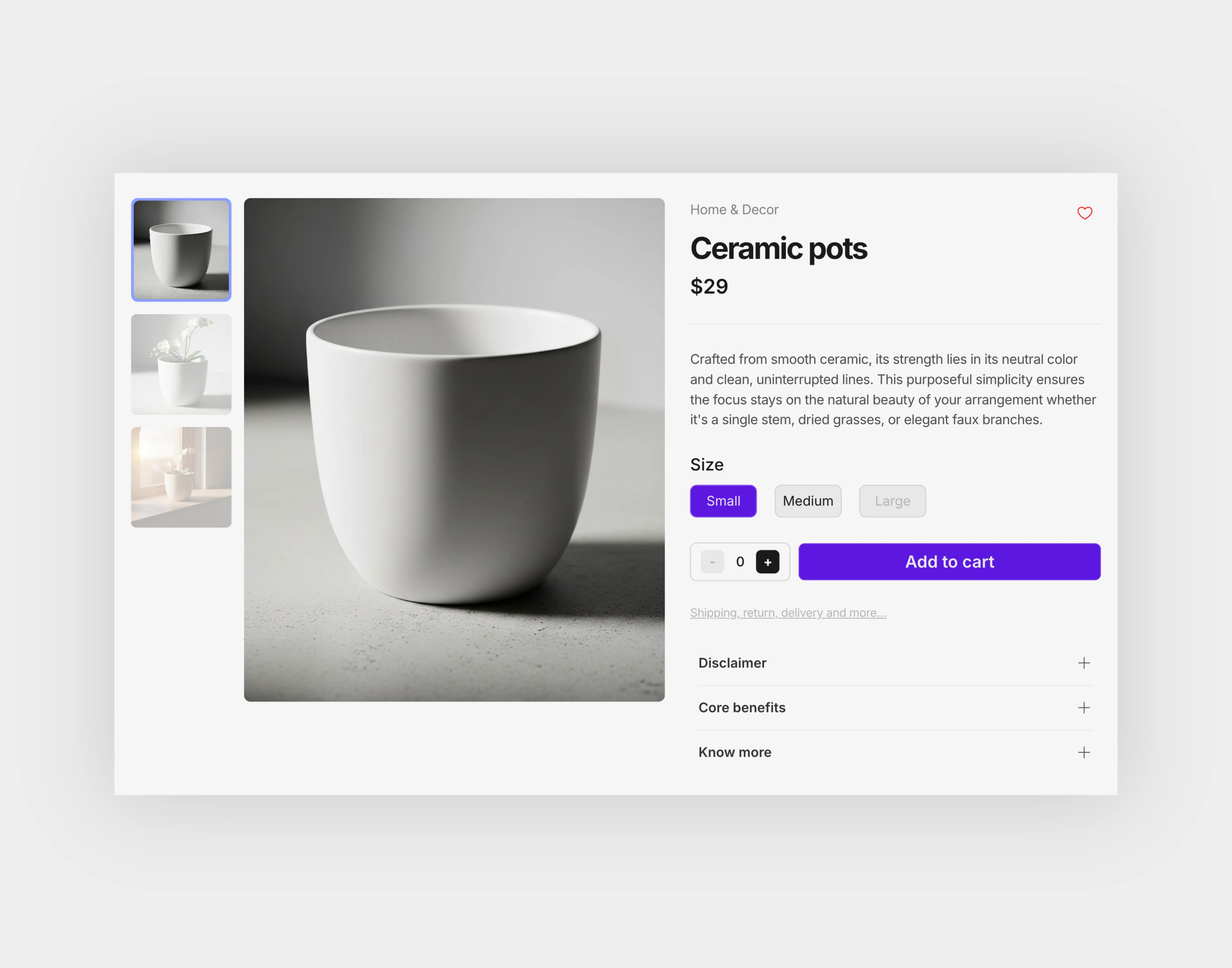
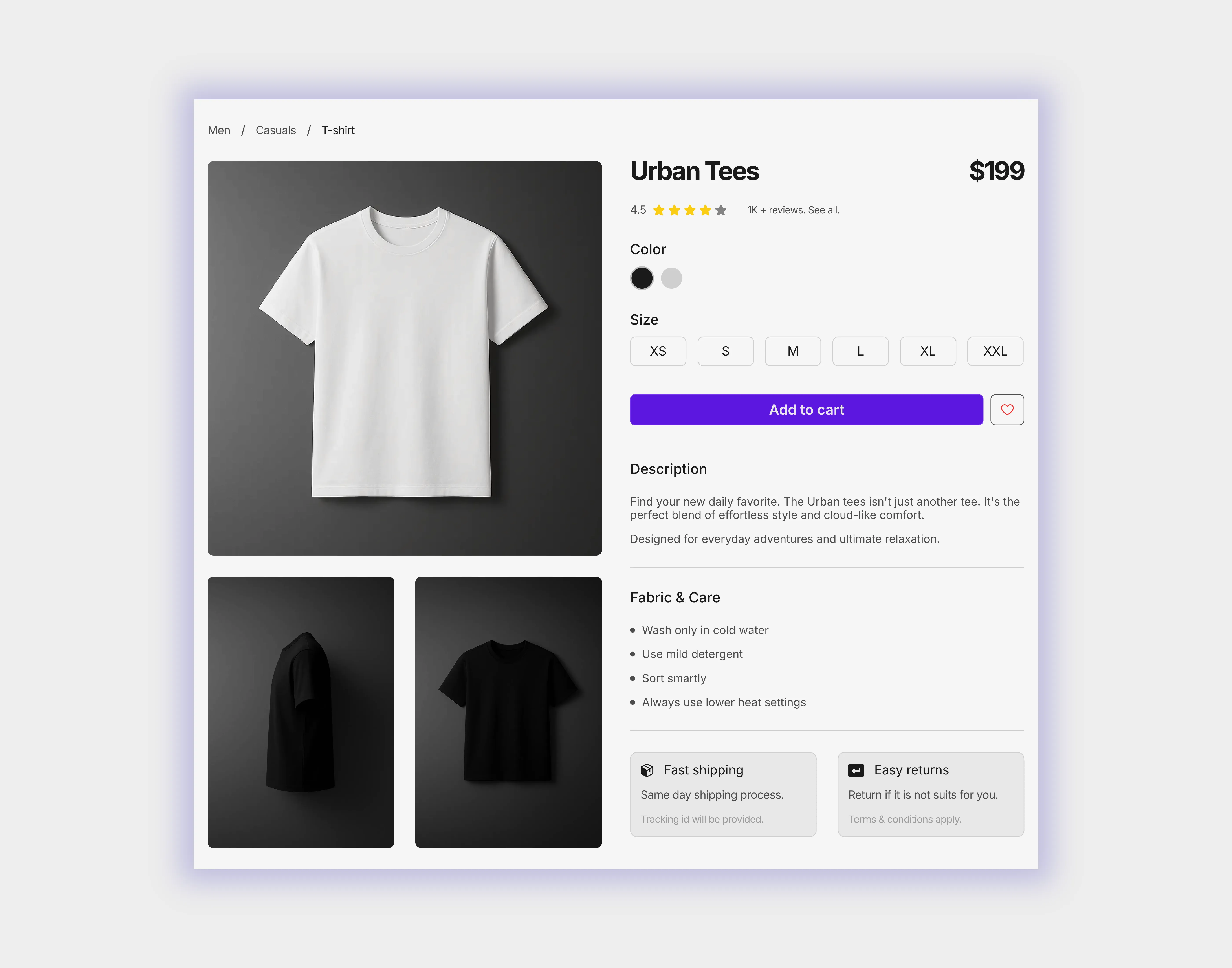
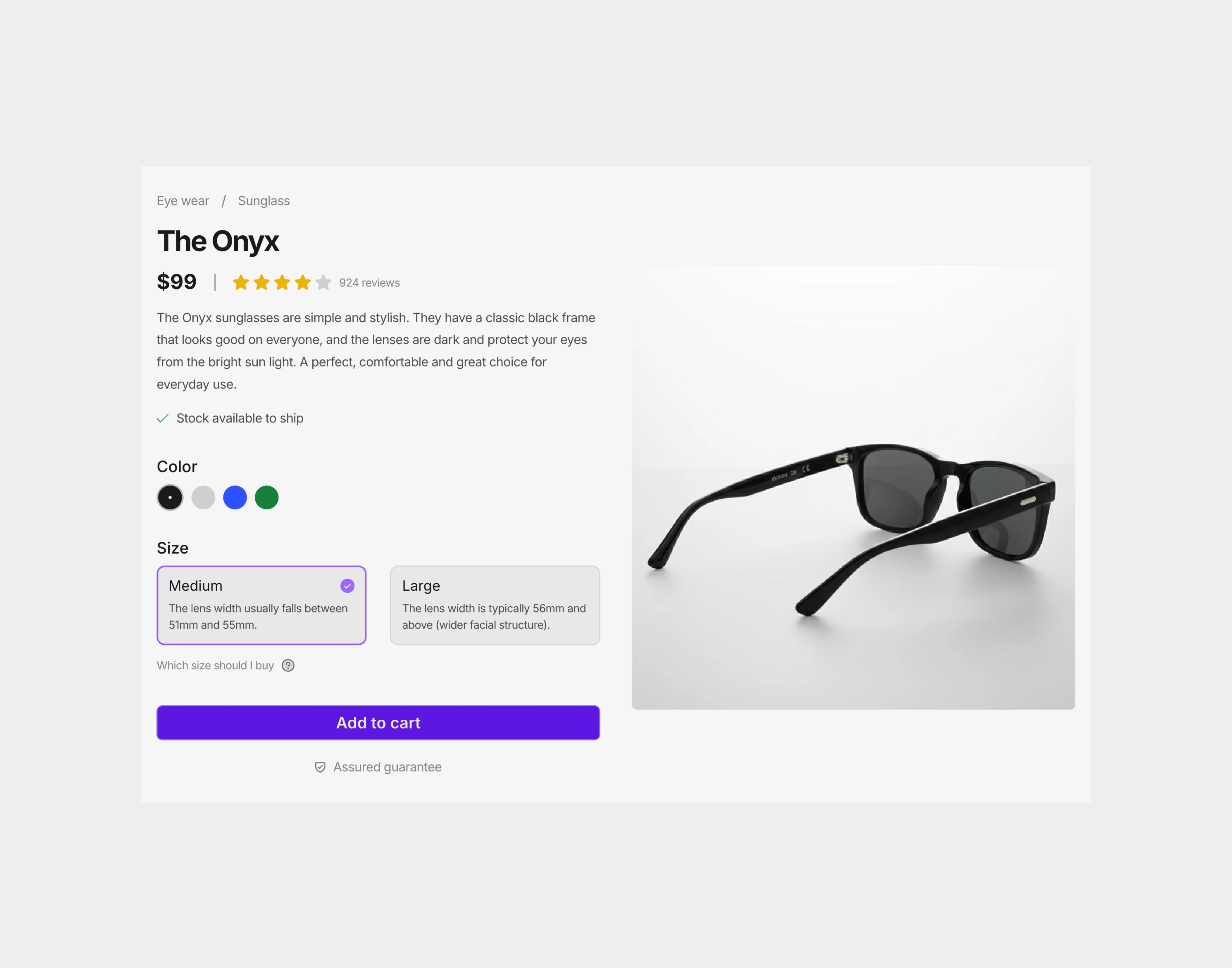
This product overview section for Framer gives clothing brands a complete, working product page. A thumbnail gallery sits beside the title, rating, sale price, color swatches and a size picker with sold-out and low-stock states. Quantity and Add to bag open a slide-in bag with a subtotal and free-shipping bar.
Variants:
6
Breakpoints
Theme:
Please note: This component is available only for active license holders. Sign in with your license key or purchase one.
Copying disabled
How to use the component?
Setting up a shop page? This one arrives ready to sell. Use the copy button above, paste it into your project, and the gallery, buy box, and bag come with it.
Copy needs a standard member account, so sign in first if the button stays quiet.
After you paste, match a variant to each breakpoint: Light or Dark, at 1200, 810, and 390 wide.
Worth knowing up front: most of this section is native Framer, and one small code file, ProductOverview4.tsx, powers the Buy Box and Bag Button. Keep it in your project alongside the Product 4 Detail, Gallery, Wish, and Accordion components. There is no CMS.
Before you go live, add your Checkout link to the Bag Button, because this section doesn't take payments on its own.
Product photos live on the Gallery instance. Open Product 4 Detail, pick a color variant such as Light Black, and set Image 1, 2, and 3 in the right panel. Repeat for each color, in both themes and in the Stacked versions.
Stock lives on the Buy Box. Sizes lists what you sell, Sold Out strikes sizes through, and Low Stock takes pairs like L:3, which also caps the quantity and shows Only 3 left.
Price, product name, and the note under the sizes are Buy Box properties too. Update Bag Image for each color so the bag shows the right photo, and keep the price in step with the $38 text above it.
Need a fourth color? Duplicate a color variant, add a swatch, and set its tap action to the new variant.
Title, rating, perks, and the three accordion rows are plain native content you can rewrite on the canvas.
Adding to the bag opens a slide-in drawer with each item, quantity controls, Remove, the subtotal, and a free-shipping progress bar. Set the Free Ship amount on the Bag Button.
Repeat adds of the same color and size merge into one line, and the count on the Bag Button updates as you go.
The bag is held in the browser while the visitor is on the page, so it clears on refresh. For a real store with saved carts and payments, connect your shop platform and link Checkout to it.
Clicks and the bag only run in Preview or on a published site. On the canvas, the Buy Box shows its resting state.
Comparing layouts? The other product overview sections are one click away.
Finish the store with product listings and shopping carts.
Where to use?
Best on a single product page for clothing and apparel brands, and easy to adapt for any item sold in colors and sizes, like hoodies, sneakers, or caps.
Lead into it from a product listing, and use it as a lightweight storefront for small drops, then link Checkout to your payment page.
LIMITED TIME OFFER
Launch amazing websites with
Framerstacks
Still trying to design and launch a website from scratch? Check out 800+ pre-built Framer components and sections that 10x your design speed.
Life time access
Save hundreds of hours
10x design speed
Weekly new releases
Premium designs
Color theme responsiveness
Starts from
$79.00
$99
One-time
Library overview
Framerstacks hosts one of the largest collections of pre-built Framer components and website sections. With 270+ professionally designed components and 1000+ variants.
Our library spans 120+ webpage section categories, enabling creators to build beautiful, high-performance websites in Framer faster than ever.
Explore the main library page.
Contribution
Have something creative on your mind? Or wish to become a contributor inside Framerstacks?
You're welcome. Join as a contributor and help to shape the future of the high-quality Framer components and sections gallery. Head over to the submission page and contribute.
Support
If you need any further support related to this specific component or section, please get in touch at hello@framerstacks.com
One of our customer support team members will get in touch with you within 24 hours.
To report an issue with the product, purchase, functionality, submit a ticket.
Just like more components
The FAQs
Have questions? We got you…
Everything you need to know about our product and billing.
" height="145.6071412712696px" id="yQXBZZpLX" width="80.09859047311576px"/></svg>)
What is Framerstack?
Is there a free plan available?
What about the refund policy?
How I can avail my user license?
Still have questions? Or can't find the right answer? Please contact us. One of our customer support team members will get in touch with you.
Join to the community
Stay in the loop with everything you need to know.
By clicking Submit, you agree to our Privacy Policy and to receive our notifications. You can Unsubscribe anytime.
By clicking Submit, you agree to our Privacy Policy and to receive our notifications. You can Unsubscribe anytime.