Framerstacks plugin is live now - Open plugin from your canvas and start using FREE assets.
Plugin is live now - Open it from your desktop.
Learn more

Last updated on:
Updated on:
Available variants


Set up guide or video preview
Arc Process Timeline Section with Autoplay Steps
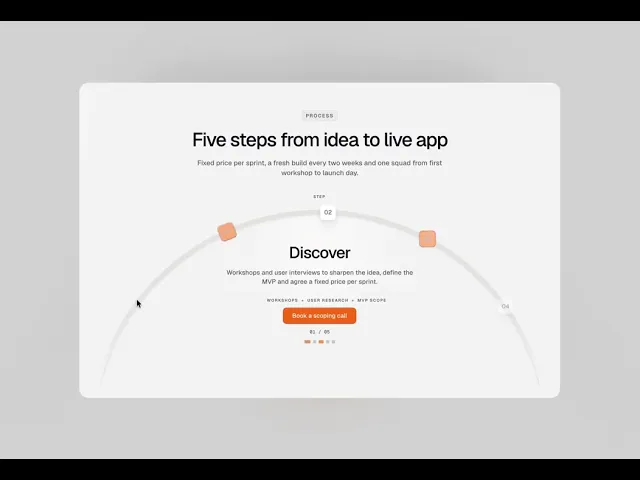
A process timeline for Framer that turns five steps into a rotating arc. The wheel moves to the next step on its own every few seconds, and visitors can tap any numbered badge or dot to jump straight to that step.
...
...
Variants:
6
Breakpoints
Theme:
Please note: This component is available only for active license holders. Sign in with your license key or purchase one.
Copying disabled
How to use the component?
Copy this timeline section and paste it into your Framer project.
Unable to copy? Sign in and try again.
Autoplay and tap interactions only play in Preview and on the published site. On the canvas, you see step 01.
The arc is its own component: Timeline 3 Arc. Every step is a variant: Light 1 to 5, Dark 1 to 5, and Compact versions of both for phone. That makes 20 variants in total.
To change a step, open its variant and edit the title, description, and the three tags below the divider. Update the same step in every theme and size you plan to use so they stay in sync.
The eyebrow, heading, and intro text sit in Timeline 3 itself. Edit them once per variant of the main section.
Each step variant has an On Appear interaction that switches to the next step after 4.5 seconds. Step 05 loops back to step 01. Change the delay in the Interactions panel of each variant.
The wheel turns 26 degrees per step and the badges counter-rotate, so the numbers always stay upright. Only the active badge turns orange.
The badges and the dots under the counter use Tap interactions to jump to their step. If you add or remove a step, duplicate a variant, set its rotation, and rewire the On Appear and Tap targets on its neighbours.
Desktop and tablet use the large dome. Phone switches to the Compact variants with a smaller arc so the next step stays in view on narrow screens.
The accent comes from the Orange 500 color style. Swap that color style to restyle the active badge, dots, and button in one go.
Where to use?
Use it on the services, how we work, or onboarding page of an agency, product studio, consultancy, or SaaS website to show the path from the first call to launch.
Place it after your services or features section, then follow with pricing or a call to action so visitors know the next step.
LIMITED TIME OFFER
Launch amazing websites with
Framerstacks
Still trying to design and launch a website from scratch? Check out 1200+ pre-built Framer components variants and sections that 10x your design speed.
Life time access
Save hundreds of hours
10x design speed
Weekly new releases
Premium designs
Color theme responsiveness
Starts from
$79.00
$99
One-time
About the library
Framerstacks hosts one of the largest collections of pre-built Framer components and website sections. With 300+ professionally designed components and 1200+ variants.
Our library spans 150+ webpage sections from 48 different categories, enabling creators to build beautiful, high-performance websites in Framer faster than ever.
Explore the main library page.
Contribution
Have something creative on your mind? Or wish to become a contributor inside Framerstacks?
You're welcome. Join as a contributor and help to shape the future of the high-quality Framer components and sections gallery. Head over to the submission page and contribute.
Support
If you need any further support related to this specific component or section, please get in touch at hello@framerstacks.com
One of our customer support team members will get in touch with you within 24 hours.
To report an issue with the product, purchase, functionality, submit a ticket.
Just like more components


The FAQs
Have questions? We got you…
Everything you need to know about our product and billing.
" height="145.6071412712696px" id="yQXBZZpLX" width="80.09859047311576px"/></svg>)
What is Framerstacks?
Is there a free plan available?
What about the refund policy?
How can I get my user license?
Still have questions? Or can't find the right answer? Please contact us. One of our customer support team members will get in touch with you.
Join to the community
Stay in the loop with everything you need to know.
By clicking Submit, you agree to our Privacy Policy and to receive our notifications. You can Unsubscribe anytime.
By clicking Submit, you agree to our Privacy Policy and to receive our notifications. You can Unsubscribe anytime.