Last updated on:
Updated on:
Available variants



CMS Powered Events Section with Countdown and Filters Options
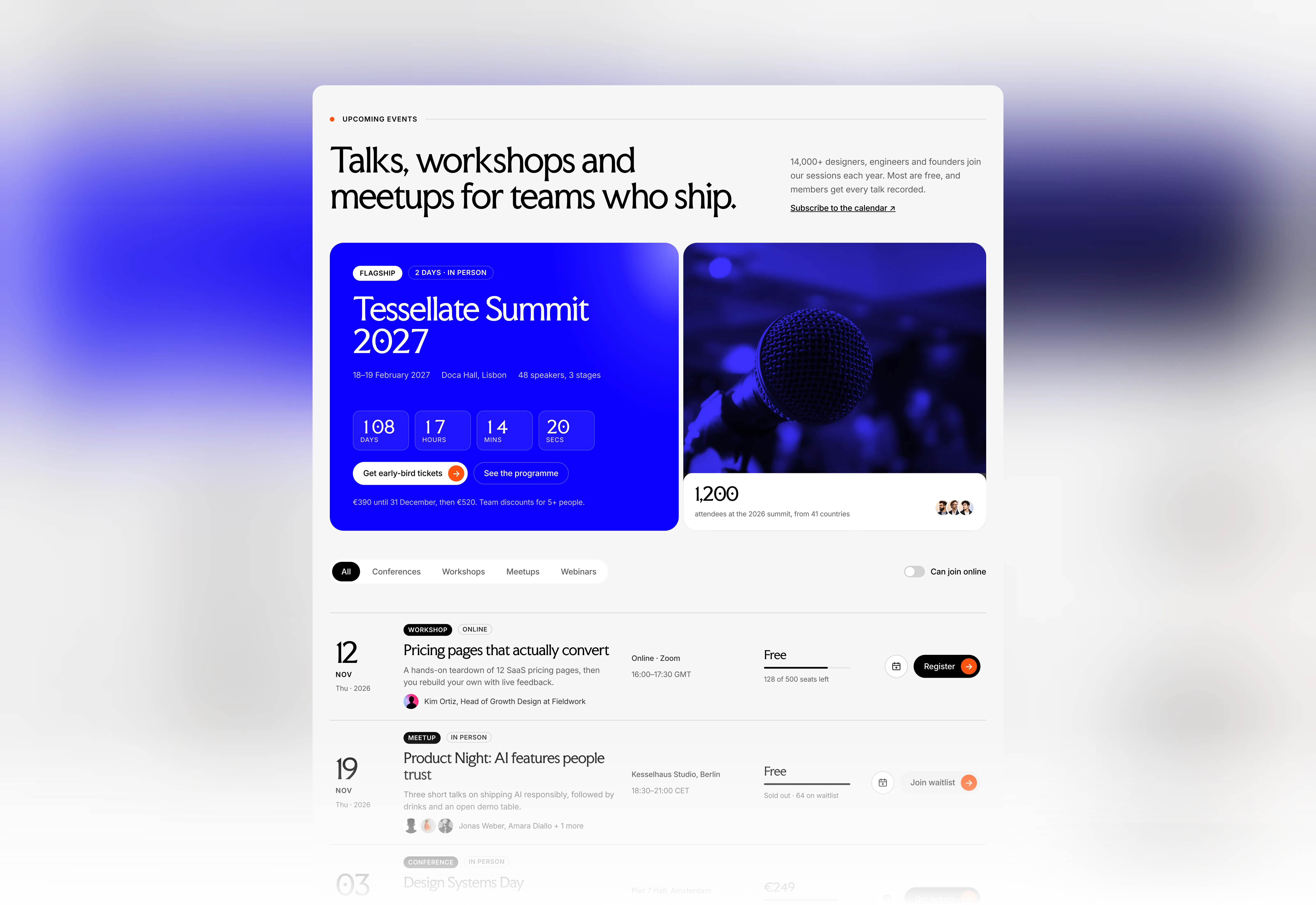
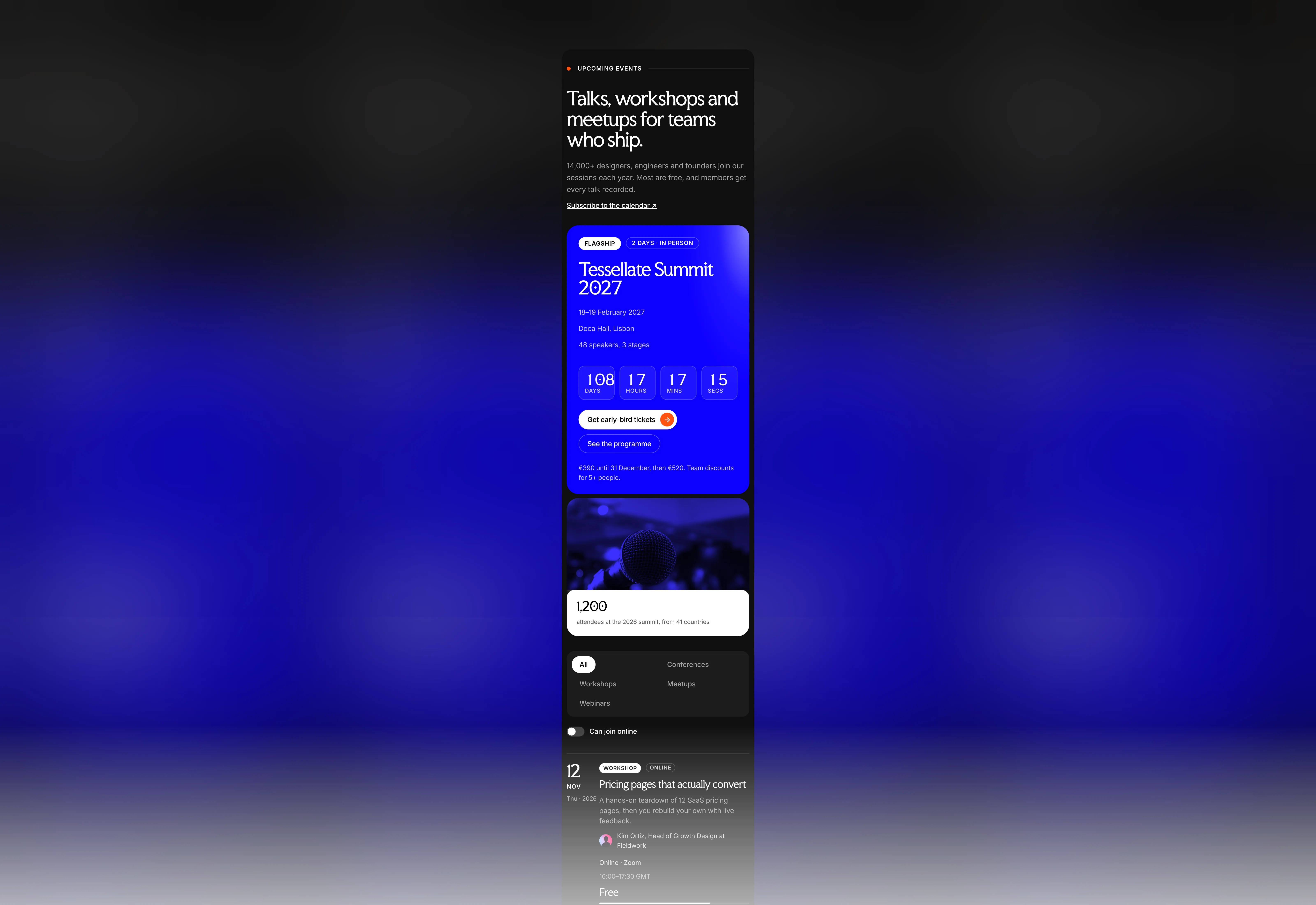
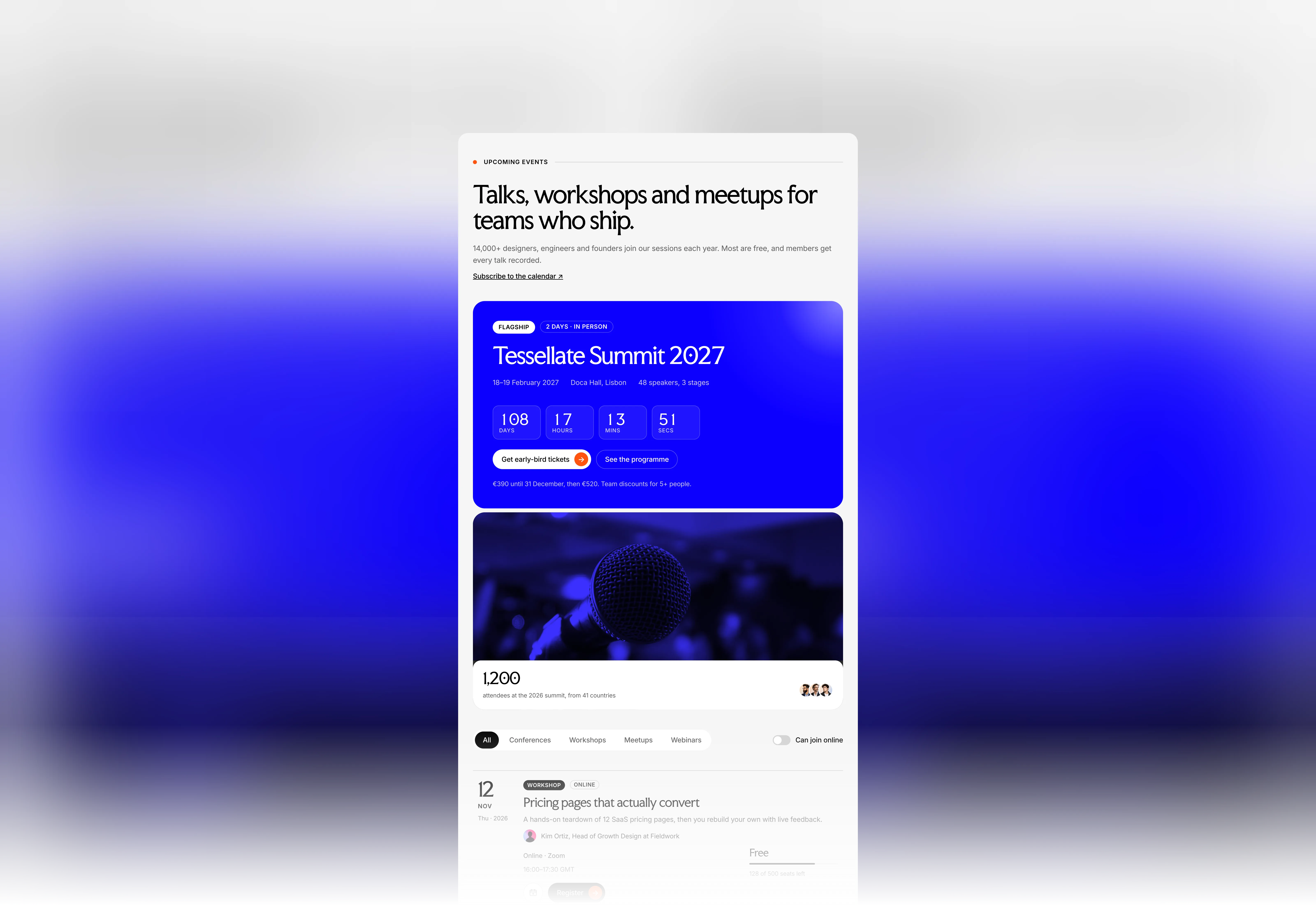
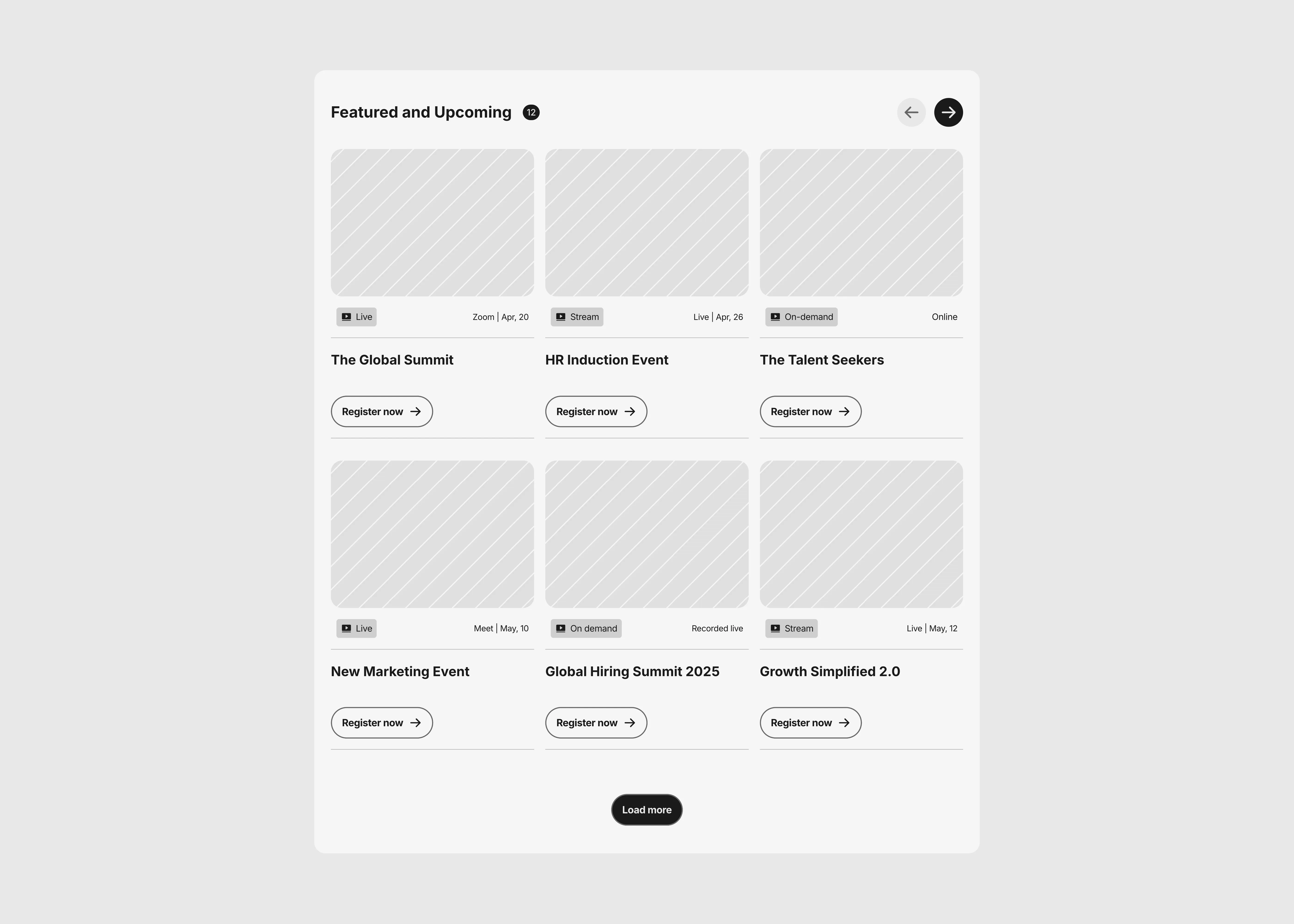
This section is a CMS powered events listing for Framer web design. It pairs a featured event panel, with a live countdown and a filterable list of upcoming talks, workshops and meetups.
Variants:
6
Breakpoints
Theme:
Please note: This component is available only for active license holders. Sign in with your license key or purchase one.
Copying disabled
How to use the component?
Copy this CMS powered events section using the copy button above.
Unable to copy? Sign in and try again.
Important: This section does not fully function on its own. It depends on a CMS collection, three nested components, three code components, and one code override. Bring all of them into your project, or the event list, countdown, seat bars, and cursor preview will stay empty.
We suggest you head over to your Framerstackskit file and find this section package under /section/event/#event-section-3
Connect the CMS collection: on Framerstackskit, open CMS > Events 3 and recreate the same fields in your project: Title, Featured, Filter Tags, Category, Format, Day, Month, Weekday, Date, End Date, Starts (UTC), Ends (UTC), Description, Speakers, Avatar 1-3, Location, Time, Online Venue, Price, Seats, Seats Filled %, Almost Full, Sold Out, Button Label, Link, Image, and the five Featured fields (Date Label, Badge, Stat, Stat Label, Price Note).
Then select the Featured List and the Event List inside the section and point both to your collection.
Re-bind any layer that shows an empty field.
Turn on Featured for one item to show it in the large panel with the countdown.
Featured items carry the “featured” tag, so they never repeat in the list below.
Filter Tags power the chips and the online switch. Write “all”, the event type, and “online” for remote events, for example “all workshop online”. The types are conference, workshop, meetup, and webinar.
Date fields only store days, so the exact times live in Starts (UTC) and Ends (UTC) in the format 2027-02-18T09:00:00Z. The countdown and the Add to calendar file read these two fields.
Seats Filled % (0-100) sets the seats bar, Almost Full shows the orange dot, and Sold Out switches the button to the grey waitlist style. The list is sorted by Date and shows 3 events per page with a Load More button; change the page size on the Event List.
Nested component (1): Events 3 Button (Dark, Light, Muted, Muted Dark, and Outline styles with a hover state).
Nested component (2): Events 3 Chip (Light and Dark, Default and Active), and Events 3 Switch (Light and Dark, Off and On). Each has dark and light theme variants that the section switches for you, so keep them in your project with their variants intact.
Code components (Events3_countdown.tsx): Events Countdown ticks down to Starts (UTC), Seats Bar draws the fill from Seats Filled %, and Add To Calendar downloads a real .ics file for any event. Edit their colors and labels in the right panel.
Code override (Events3DynamicCursorOverride.tsx): withDynamicEventCursor is applied to every Event Row. On hover, it reads the hidden Cursor Image Source layer, bound to the Image field, and shows a photo preview that follows the cursor. Keep the layer name and the override in place.
Note that the countdown, calendar download, filters, and cursor preview only run in Preview and on the published site, not on the canvas.
Explore more events sections built for different layouts and styles.
Check out more CMS powered sections and collections in the library.
Where to use?
Use it on a conference, community, or meetup site; a SaaS webinar and launch page; or an agency workshop page where events change weekly and need to be managed in the CMS.
Or place it right after the hero of an events page, or near the end of a homepage to promote the next big event.
Pair it with a newsletter form and a call-to-action section to turn visitors into attendees.
LIMITED TIME OFFER
Launch amazing websites with
Framerstacks
Still trying to design and launch a website from scratch? Check out 800+ pre-built Framer components and sections that 10x your design speed.
Life time access
Save hundreds of hours
10x design speed
Weekly new releases
Premium designs
Color theme responsiveness
Starts from
$79.00
$99
One-time
CMS Powered Events Section with Countdown and Filters Options
This section is a CMS powered events listing for Framer web design. It pairs a featured event panel, with a live countdown and a filterable list of upcoming talks, workshops and meetups.
Variants:
6
Breakpoints
Theme:
Please note: This component is available only for active license holders. Sign in with your license key or purchase one.
Copying disabled
How to use the component?
Copy this CMS powered events section using the copy button above.
Unable to copy? Sign in and try again.
Important: This section does not fully function on its own. It depends on a CMS collection, three nested components, three code components, and one code override. Bring all of them into your project, or the event list, countdown, seat bars, and cursor preview will stay empty.
We suggest you head over to your Framerstackskit file and find this section package under /section/event/#event-section-3
Connect the CMS collection: on Framerstackskit, open CMS > Events 3 and recreate the same fields in your project: Title, Featured, Filter Tags, Category, Format, Day, Month, Weekday, Date, End Date, Starts (UTC), Ends (UTC), Description, Speakers, Avatar 1-3, Location, Time, Online Venue, Price, Seats, Seats Filled %, Almost Full, Sold Out, Button Label, Link, Image, and the five Featured fields (Date Label, Badge, Stat, Stat Label, Price Note).
Then select the Featured List and the Event List inside the section and point both to your collection.
Re-bind any layer that shows an empty field.
Turn on Featured for one item to show it in the large panel with the countdown.
Featured items carry the “featured” tag, so they never repeat in the list below.
Filter Tags power the chips and the online switch. Write “all”, the event type, and “online” for remote events, for example “all workshop online”. The types are conference, workshop, meetup, and webinar.
Date fields only store days, so the exact times live in Starts (UTC) and Ends (UTC) in the format 2027-02-18T09:00:00Z. The countdown and the Add to calendar file read these two fields.
Seats Filled % (0-100) sets the seats bar, Almost Full shows the orange dot, and Sold Out switches the button to the grey waitlist style. The list is sorted by Date and shows 3 events per page with a Load More button; change the page size on the Event List.
Nested component (1): Events 3 Button (Dark, Light, Muted, Muted Dark, and Outline styles with a hover state).
Nested component (2): Events 3 Chip (Light and Dark, Default and Active), and Events 3 Switch (Light and Dark, Off and On). Each has dark and light theme variants that the section switches for you, so keep them in your project with their variants intact.
Code components (Events3_countdown.tsx): Events Countdown ticks down to Starts (UTC), Seats Bar draws the fill from Seats Filled %, and Add To Calendar downloads a real .ics file for any event. Edit their colors and labels in the right panel.
Code override (Events3DynamicCursorOverride.tsx): withDynamicEventCursor is applied to every Event Row. On hover, it reads the hidden Cursor Image Source layer, bound to the Image field, and shows a photo preview that follows the cursor. Keep the layer name and the override in place.
Note that the countdown, calendar download, filters, and cursor preview only run in Preview and on the published site, not on the canvas.
Explore more events sections built for different layouts and styles.
Check out more CMS powered sections and collections in the library.
Where to use?
Use it on a conference, community, or meetup site; a SaaS webinar and launch page; or an agency workshop page where events change weekly and need to be managed in the CMS.
Or place it right after the hero of an events page, or near the end of a homepage to promote the next big event.
Pair it with a newsletter form and a call-to-action section to turn visitors into attendees.
LIMITED TIME OFFER
Launch amazing websites with
Framerstacks
Still trying to design and launch a website from scratch? Check out 800+ pre-built Framer components and sections that 10x your design speed.
Life time access
Save hundreds of hours
10x design speed
Weekly new releases
Premium designs
Color theme responsiveness
Starts from
$79.00
$99
One-time
CMS Powered Events Section with Countdown and Filters Options
This section is a CMS powered events listing for Framer web design. It pairs a featured event panel, with a live countdown and a filterable list of upcoming talks, workshops and meetups.
Variants:
6
Breakpoints
Theme:
Please note: This component is available only for active license holders. Sign in with your license key or purchase one.
Copying disabled
How to use the component?
Copy this CMS powered events section using the copy button above.
Unable to copy? Sign in and try again.
Important: This section does not fully function on its own. It depends on a CMS collection, three nested components, three code components, and one code override. Bring all of them into your project, or the event list, countdown, seat bars, and cursor preview will stay empty.
We suggest you head over to your Framerstackskit file and find this section package under /section/event/#event-section-3
Connect the CMS collection: on Framerstackskit, open CMS > Events 3 and recreate the same fields in your project: Title, Featured, Filter Tags, Category, Format, Day, Month, Weekday, Date, End Date, Starts (UTC), Ends (UTC), Description, Speakers, Avatar 1-3, Location, Time, Online Venue, Price, Seats, Seats Filled %, Almost Full, Sold Out, Button Label, Link, Image, and the five Featured fields (Date Label, Badge, Stat, Stat Label, Price Note).
Then select the Featured List and the Event List inside the section and point both to your collection.
Re-bind any layer that shows an empty field.
Turn on Featured for one item to show it in the large panel with the countdown.
Featured items carry the “featured” tag, so they never repeat in the list below.
Filter Tags power the chips and the online switch. Write “all”, the event type, and “online” for remote events, for example “all workshop online”. The types are conference, workshop, meetup, and webinar.
Date fields only store days, so the exact times live in Starts (UTC) and Ends (UTC) in the format 2027-02-18T09:00:00Z. The countdown and the Add to calendar file read these two fields.
Seats Filled % (0-100) sets the seats bar, Almost Full shows the orange dot, and Sold Out switches the button to the grey waitlist style. The list is sorted by Date and shows 3 events per page with a Load More button; change the page size on the Event List.
Nested component (1): Events 3 Button (Dark, Light, Muted, Muted Dark, and Outline styles with a hover state).
Nested component (2): Events 3 Chip (Light and Dark, Default and Active), and Events 3 Switch (Light and Dark, Off and On). Each has dark and light theme variants that the section switches for you, so keep them in your project with their variants intact.
Code components (Events3_countdown.tsx): Events Countdown ticks down to Starts (UTC), Seats Bar draws the fill from Seats Filled %, and Add To Calendar downloads a real .ics file for any event. Edit their colors and labels in the right panel.
Code override (Events3DynamicCursorOverride.tsx): withDynamicEventCursor is applied to every Event Row. On hover, it reads the hidden Cursor Image Source layer, bound to the Image field, and shows a photo preview that follows the cursor. Keep the layer name and the override in place.
Note that the countdown, calendar download, filters, and cursor preview only run in Preview and on the published site, not on the canvas.
Explore more events sections built for different layouts and styles.
Check out more CMS powered sections and collections in the library.
Where to use?
Use it on a conference, community, or meetup site; a SaaS webinar and launch page; or an agency workshop page where events change weekly and need to be managed in the CMS.
Or place it right after the hero of an events page, or near the end of a homepage to promote the next big event.
Pair it with a newsletter form and a call-to-action section to turn visitors into attendees.
LIMITED TIME OFFER
Launch amazing websites with
Framerstacks
Still trying to design and launch a website from scratch? Check out 800+ pre-built Framer components and sections that 10x your design speed.
Life time access
Save hundreds of hours
10x design speed
Weekly new releases
Premium designs
Color theme responsiveness
Starts from
$79.00
$99
One-time
CMS Powered Events Section with Countdown and Filters Options
This section is a CMS powered events listing for Framer web design. It pairs a featured event panel, with a live countdown and a filterable list of upcoming talks, workshops and meetups.
Variants:
6
Breakpoints
Theme:
Please note: This component is available only for active license holders. Sign in with your license key or purchase one.
Copying disabled
How to use the component?
Copy this CMS powered events section using the copy button above.
Unable to copy? Sign in and try again.
Important: This section does not fully function on its own. It depends on a CMS collection, three nested components, three code components, and one code override. Bring all of them into your project, or the event list, countdown, seat bars, and cursor preview will stay empty.
We suggest you head over to your Framerstackskit file and find this section package under /section/event/#event-section-3
Connect the CMS collection: on Framerstackskit, open CMS > Events 3 and recreate the same fields in your project: Title, Featured, Filter Tags, Category, Format, Day, Month, Weekday, Date, End Date, Starts (UTC), Ends (UTC), Description, Speakers, Avatar 1-3, Location, Time, Online Venue, Price, Seats, Seats Filled %, Almost Full, Sold Out, Button Label, Link, Image, and the five Featured fields (Date Label, Badge, Stat, Stat Label, Price Note).
Then select the Featured List and the Event List inside the section and point both to your collection.
Re-bind any layer that shows an empty field.
Turn on Featured for one item to show it in the large panel with the countdown.
Featured items carry the “featured” tag, so they never repeat in the list below.
Filter Tags power the chips and the online switch. Write “all”, the event type, and “online” for remote events, for example “all workshop online”. The types are conference, workshop, meetup, and webinar.
Date fields only store days, so the exact times live in Starts (UTC) and Ends (UTC) in the format 2027-02-18T09:00:00Z. The countdown and the Add to calendar file read these two fields.
Seats Filled % (0-100) sets the seats bar, Almost Full shows the orange dot, and Sold Out switches the button to the grey waitlist style. The list is sorted by Date and shows 3 events per page with a Load More button; change the page size on the Event List.
Nested component (1): Events 3 Button (Dark, Light, Muted, Muted Dark, and Outline styles with a hover state).
Nested component (2): Events 3 Chip (Light and Dark, Default and Active), and Events 3 Switch (Light and Dark, Off and On). Each has dark and light theme variants that the section switches for you, so keep them in your project with their variants intact.
Code components (Events3_countdown.tsx): Events Countdown ticks down to Starts (UTC), Seats Bar draws the fill from Seats Filled %, and Add To Calendar downloads a real .ics file for any event. Edit their colors and labels in the right panel.
Code override (Events3DynamicCursorOverride.tsx): withDynamicEventCursor is applied to every Event Row. On hover, it reads the hidden Cursor Image Source layer, bound to the Image field, and shows a photo preview that follows the cursor. Keep the layer name and the override in place.
Note that the countdown, calendar download, filters, and cursor preview only run in Preview and on the published site, not on the canvas.
Explore more events sections built for different layouts and styles.
Check out more CMS powered sections and collections in the library.
Where to use?
Use it on a conference, community, or meetup site; a SaaS webinar and launch page; or an agency workshop page where events change weekly and need to be managed in the CMS.
Or place it right after the hero of an events page, or near the end of a homepage to promote the next big event.
Pair it with a newsletter form and a call-to-action section to turn visitors into attendees.
LIMITED TIME OFFER
Launch amazing websites with
Framerstacks
Still trying to design and launch a website from scratch? Check out 800+ pre-built Framer components and sections that 10x your design speed.
Life time access
Save hundreds of hours
10x design speed
Weekly new releases
Premium designs
Color theme responsiveness
Starts from
$79.00
$99
One-time
Library overview
Framerstacks hosts one of the largest collections of pre-built Framer components and website sections. With 270+ professionally designed components and 1000+ variants.
Our library spans 120+ webpage section categories, enabling creators to build beautiful, high-performance websites in Framer faster than ever.
Explore the main library page.
Contribution
Have something creative on your mind? Or wish to become a contributor inside Framerstacks?
You're welcome. Join as a contributor and help to shape the future of the high-quality Framer components and sections gallery. Head over to the submission page and contribute.
Support
If you need any further support related to this specific component or section, please get in touch at hello@framerstacks.com
One of our customer support team members will get in touch with you within 24 hours.
To report an issue with the product, purchase, functionality, submit a ticket.
Just like more components
The FAQs
Have questions? We got you…
Everything you need to know about our product and billing.
" height="145.6071412712696px" id="yQXBZZpLX" width="80.09859047311576px"/></svg>)
What is Framerstack?
Is there a free plan available?
What about the refund policy?
How I can avail my user license?
Still have questions? Or can't find the right answer? Please contact us. One of our customer support team members will get in touch with you.
Join to the community
Stay in the loop with everything you need to know.
By clicking Submit, you agree to our Privacy Policy and to receive our notifications. You can Unsubscribe anytime.
By clicking Submit, you agree to our Privacy Policy and to receive our notifications. You can Unsubscribe anytime.