
Last updated on:
Updated on:
Available variants


Data Table Component for Framer Dashboards
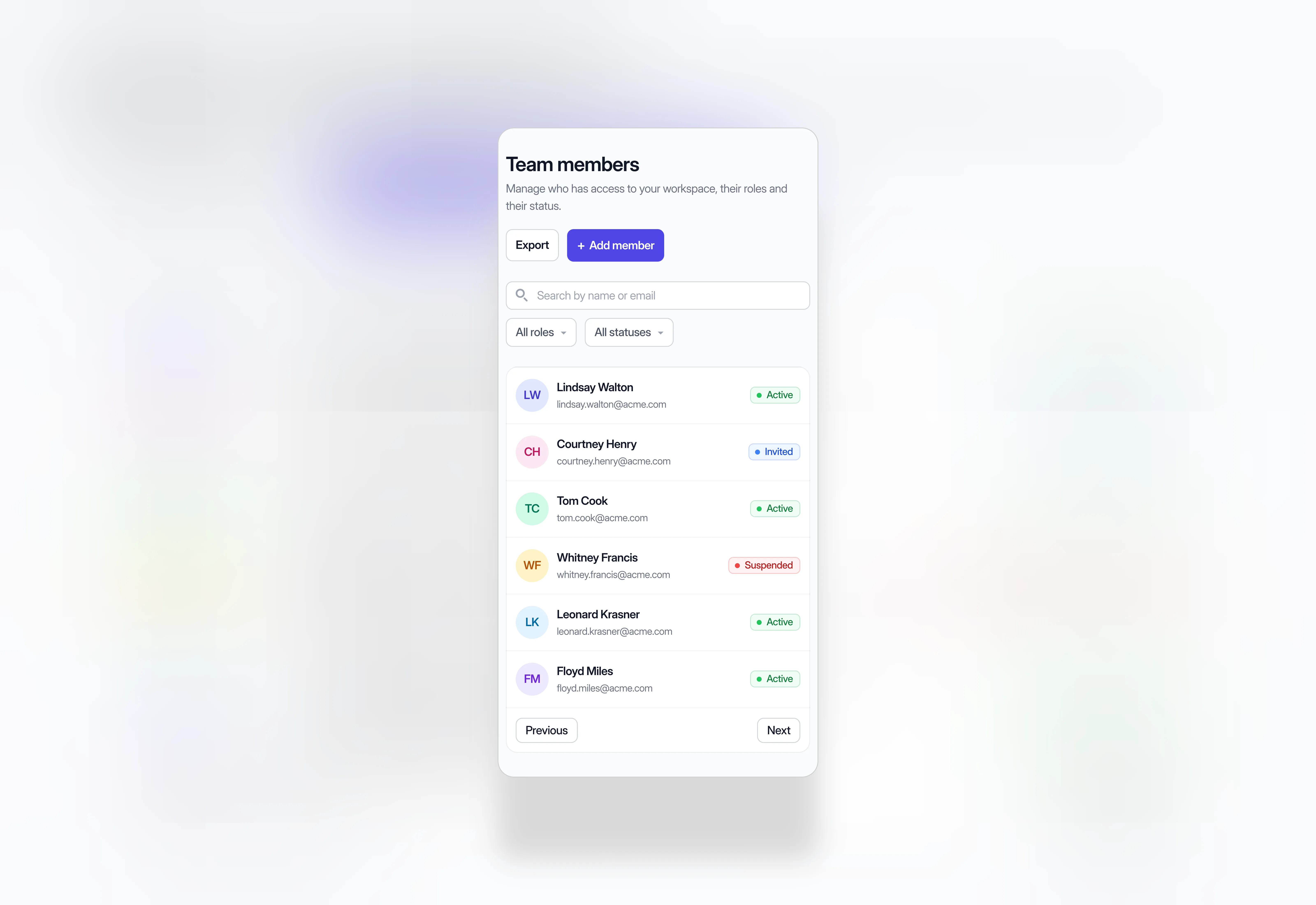
This component is a team data table for Framer with avatars, emails, roles, colored status badges and last active times on every row. Role and status chips open dropdown menus, and a search field, numbered pagination and a member count sit around the table in a clean indigo and gray style. It comes in light and dark with desktop, tablet and phone layouts, built from native Framer layers.
Variants:
6
Breakpoints
Theme:
Please note: This component is available only for active license holders. Sign in with your license key or purchase one.
Copying disabled
How to use the component?
Copy this data table component using the copy button above.
If you cannot copy, sign in and try again.
Paste it onto your Framer canvas, then pick the variant for each breakpoint: Desktop for wide layouts, Tablet at 810px, and Phone at 390px.
Match the theme to your page: use the Light variants on white backgrounds and the Dark variants on dark ones
Drop it inside a section with side padding so the table card keeps some breathing room from the screen edges.
Set the width to fill the container so the table stretches with your layout.
Double-click the component to open it, then double-click any text to edit names, emails, roles, and last active times.
Add a member by duplicating a Data Row and its divider, then edit the text and the avatar initials.
Change a status by swapping the badge text and color: Active is green, Invited is blue, and Suspended is red.
Rename the column headers to fit your data, or hide a column you don't need.
The Role and Status chips open dropdown menus. Edit the menu items to your own options; the menus are visual, so they don't filter rows on their own.
The search field is a visual placeholder. Keep it for the look or delete it if you don't need it. Connect to a CMS collection to make the filter and search bar fully functional.
Update the member count and the footer text, such as Showing 1 to 6 of 24 results, by hand.
Explore more dashboard components for your admin and app layouts.
Browse more sections and components in the library.
Where to use?
Use it for admin panels, CRM views, team directories, and customer lists inside a dashboard layout.
Pair it with avatar components and a sidebar to build a complete app screen.
LIMITED TIME OFFER
Launch amazing websites with
Framerstacks
Still trying to design and launch a website from scratch? Check out 800+ pre-built Framer components and sections that 10x your design speed.
Life time access
Save hundreds of hours
10x design speed
Weekly new releases
Premium designs
Color theme responsiveness
Starts from
$79.00
$99
One-time
Data Table Component for Framer Dashboards
This component is a team data table for Framer with avatars, emails, roles, colored status badges and last active times on every row. Role and status chips open dropdown menus, and a search field, numbered pagination and a member count sit around the table in a clean indigo and gray style. It comes in light and dark with desktop, tablet and phone layouts, built from native Framer layers.
Variants:
6
Breakpoints
Theme:
Please note: This component is available only for active license holders. Sign in with your license key or purchase one.
Copying disabled
How to use the component?
Copy this data table component using the copy button above.
If you cannot copy, sign in and try again.
Paste it onto your Framer canvas, then pick the variant for each breakpoint: Desktop for wide layouts, Tablet at 810px, and Phone at 390px.
Match the theme to your page: use the Light variants on white backgrounds and the Dark variants on dark ones
Drop it inside a section with side padding so the table card keeps some breathing room from the screen edges.
Set the width to fill the container so the table stretches with your layout.
Double-click the component to open it, then double-click any text to edit names, emails, roles, and last active times.
Add a member by duplicating a Data Row and its divider, then edit the text and the avatar initials.
Change a status by swapping the badge text and color: Active is green, Invited is blue, and Suspended is red.
Rename the column headers to fit your data, or hide a column you don't need.
The Role and Status chips open dropdown menus. Edit the menu items to your own options; the menus are visual, so they don't filter rows on their own.
The search field is a visual placeholder. Keep it for the look or delete it if you don't need it. Connect to a CMS collection to make the filter and search bar fully functional.
Update the member count and the footer text, such as Showing 1 to 6 of 24 results, by hand.
Explore more dashboard components for your admin and app layouts.
Browse more sections and components in the library.
Where to use?
Use it for admin panels, CRM views, team directories, and customer lists inside a dashboard layout.
Pair it with avatar components and a sidebar to build a complete app screen.
LIMITED TIME OFFER
Launch amazing websites with
Framerstacks
Still trying to design and launch a website from scratch? Check out 800+ pre-built Framer components and sections that 10x your design speed.
Life time access
Save hundreds of hours
10x design speed
Weekly new releases
Premium designs
Color theme responsiveness
Starts from
$79.00
$99
One-time
Data Table Component for Framer Dashboards
This component is a team data table for Framer with avatars, emails, roles, colored status badges and last active times on every row. Role and status chips open dropdown menus, and a search field, numbered pagination and a member count sit around the table in a clean indigo and gray style. It comes in light and dark with desktop, tablet and phone layouts, built from native Framer layers.
Variants:
6
Breakpoints
Theme:
Please note: This component is available only for active license holders. Sign in with your license key or purchase one.
Copying disabled
How to use the component?
Copy this data table component using the copy button above.
If you cannot copy, sign in and try again.
Paste it onto your Framer canvas, then pick the variant for each breakpoint: Desktop for wide layouts, Tablet at 810px, and Phone at 390px.
Match the theme to your page: use the Light variants on white backgrounds and the Dark variants on dark ones
Drop it inside a section with side padding so the table card keeps some breathing room from the screen edges.
Set the width to fill the container so the table stretches with your layout.
Double-click the component to open it, then double-click any text to edit names, emails, roles, and last active times.
Add a member by duplicating a Data Row and its divider, then edit the text and the avatar initials.
Change a status by swapping the badge text and color: Active is green, Invited is blue, and Suspended is red.
Rename the column headers to fit your data, or hide a column you don't need.
The Role and Status chips open dropdown menus. Edit the menu items to your own options; the menus are visual, so they don't filter rows on their own.
The search field is a visual placeholder. Keep it for the look or delete it if you don't need it. Connect to a CMS collection to make the filter and search bar fully functional.
Update the member count and the footer text, such as Showing 1 to 6 of 24 results, by hand.
Explore more dashboard components for your admin and app layouts.
Browse more sections and components in the library.
Where to use?
Use it for admin panels, CRM views, team directories, and customer lists inside a dashboard layout.
Pair it with avatar components and a sidebar to build a complete app screen.
LIMITED TIME OFFER
Launch amazing websites with
Framerstacks
Still trying to design and launch a website from scratch? Check out 800+ pre-built Framer components and sections that 10x your design speed.
Life time access
Save hundreds of hours
10x design speed
Weekly new releases
Premium designs
Color theme responsiveness
Starts from
$79.00
$99
One-time
Data Table Component for Framer Dashboards
This component is a team data table for Framer with avatars, emails, roles, colored status badges and last active times on every row. Role and status chips open dropdown menus, and a search field, numbered pagination and a member count sit around the table in a clean indigo and gray style. It comes in light and dark with desktop, tablet and phone layouts, built from native Framer layers.
Variants:
6
Breakpoints
Theme:
Please note: This component is available only for active license holders. Sign in with your license key or purchase one.
Copying disabled
How to use the component?
Copy this data table component using the copy button above.
If you cannot copy, sign in and try again.
Paste it onto your Framer canvas, then pick the variant for each breakpoint: Desktop for wide layouts, Tablet at 810px, and Phone at 390px.
Match the theme to your page: use the Light variants on white backgrounds and the Dark variants on dark ones
Drop it inside a section with side padding so the table card keeps some breathing room from the screen edges.
Set the width to fill the container so the table stretches with your layout.
Double-click the component to open it, then double-click any text to edit names, emails, roles, and last active times.
Add a member by duplicating a Data Row and its divider, then edit the text and the avatar initials.
Change a status by swapping the badge text and color: Active is green, Invited is blue, and Suspended is red.
Rename the column headers to fit your data, or hide a column you don't need.
The Role and Status chips open dropdown menus. Edit the menu items to your own options; the menus are visual, so they don't filter rows on their own.
The search field is a visual placeholder. Keep it for the look or delete it if you don't need it. Connect to a CMS collection to make the filter and search bar fully functional.
Update the member count and the footer text, such as Showing 1 to 6 of 24 results, by hand.
Explore more dashboard components for your admin and app layouts.
Browse more sections and components in the library.
Where to use?
Use it for admin panels, CRM views, team directories, and customer lists inside a dashboard layout.
Pair it with avatar components and a sidebar to build a complete app screen.
LIMITED TIME OFFER
Launch amazing websites with
Framerstacks
Still trying to design and launch a website from scratch? Check out 800+ pre-built Framer components and sections that 10x your design speed.
Life time access
Save hundreds of hours
10x design speed
Weekly new releases
Premium designs
Color theme responsiveness
Starts from
$79.00
$99
One-time
Library overview
Framerstacks hosts one of the largest collections of pre-built Framer components and website sections. With 270+ professionally designed components and 1000+ variants.
Our library spans 120+ webpage section categories, enabling creators to build beautiful, high-performance websites in Framer faster than ever.
Explore the main library page.
Contribution
Have something creative on your mind? Or wish to become a contributor inside Framerstacks?
You're welcome. Join as a contributor and help to shape the future of the high-quality Framer components and sections gallery. Head over to the submission page and contribute.
Support
If you need any further support related to this specific component or section, please get in touch at hello@framerstacks.com
One of our customer support team members will get in touch with you within 24 hours.
To report an issue with the product, purchase, functionality, submit a ticket.
Just like more components
The FAQs
Have questions? We got you…
Everything you need to know about our product and billing.
" height="145.6071412712696px" id="yQXBZZpLX" width="80.09859047311576px"/></svg>)
What is Framerstack?
Is there a free plan available?
What about the refund policy?
How I can avail my user license?
Still have questions? Or can't find the right answer? Please contact us. One of our customer support team members will get in touch with you.
Join to the community
Stay in the loop with everything you need to know.
By clicking Submit, you agree to our Privacy Policy and to receive our notifications. You can Unsubscribe anytime.
By clicking Submit, you agree to our Privacy Policy and to receive our notifications. You can Unsubscribe anytime.