Improve your Framer website AEO score.

By
A. Rishad
Founder @framerstacks

800+ section & components
Components every week
50+ Custom forms
Complete UI kit
CMS collection
Premium templates
One-time payment starts from
Sign in, if you already have an account.
Have questions? Contact us




When Framer first published the AEO tool in May 2026, I became curious about how well my own website, Framerstacks, was optimized for Answer Engine Optimization (AEO). So I decided to run an experiment on my own site.
The initial scan results were impressive, but not perfect. Framerstacks scored 87/100. That is counted among the top 15%, because most of the websites land a 45 to 70 score on an average AEO scan.
Instead of making random changes, I followed the exact recommendations and optimization steps provided by the AEO scanner tool. After implementing those improvements and reanalyzing the website, the score jumped to 96/100.
In this article, I’ll walk through the exact changes I made, what actually impacted the score, and what I learned from testing AEO improvements on a real-world Framer website.
Focus on the recommendation
One thing I learned from this experiment is that you should not randomly optimize your website after seeing the AEO score. The scanner itself already tells you where your website is lacking and what needs improvement.
After scanning Framerstacks, I carefully reviewed each suggestion and treated it as a checklist. The goal was simple: identify missing elements and implement them exactly as mentioned in the documentation. Whether it was structured data improvements, metadata adjustments, content formatting, or missing optimization signals.
Here are the key factors I focused on:
Review every recommendation from the AEO scanner instead of making assumptions.
Prioritize issues that directly affect your score.
Follow the documentation exactly as instructed.
Add missing structured data and schema markup where needed.
Improve metadata and content organization.
Ensure your website provides clear, machine-readable information.
Re-scan your website after every important change to measure the impact.
The biggest improvement did not come from adding random SEO tricks. It came from fixing the exact areas identified by the scanner.
Structured data for site
The key reason behind my website score (87/100) was improperly structured data. One of the biggest improvements that impacted my AEO score was adding proper structured data to my website. Structured data is a standardized way of giving search engines and AI systems more context about your website content.
A common and widely used format for this is JSON-LD (JavaScript Object Notation for Linked Data). JSON-LD works behind the scenes and provides organized information that search engines can read easily.
Basically, I didn't have any previous background in writing code or snippets to complete this task and elevate my website AEO score. What I simply did was refer to the documentation tips, then did some deep research behind the Framer website's structured data. I explored how they structured their data, copied their format, and replaced the details with my website data.
Step by step guide to add structured data to your Framer website
Adding structured data to your Framer website is a risky task if you are not an expert in handling code snippets. Even a single character mistake may cause a major crash of your Framer website. But no worries, we can simply leverage AI tools to execute it professionally.
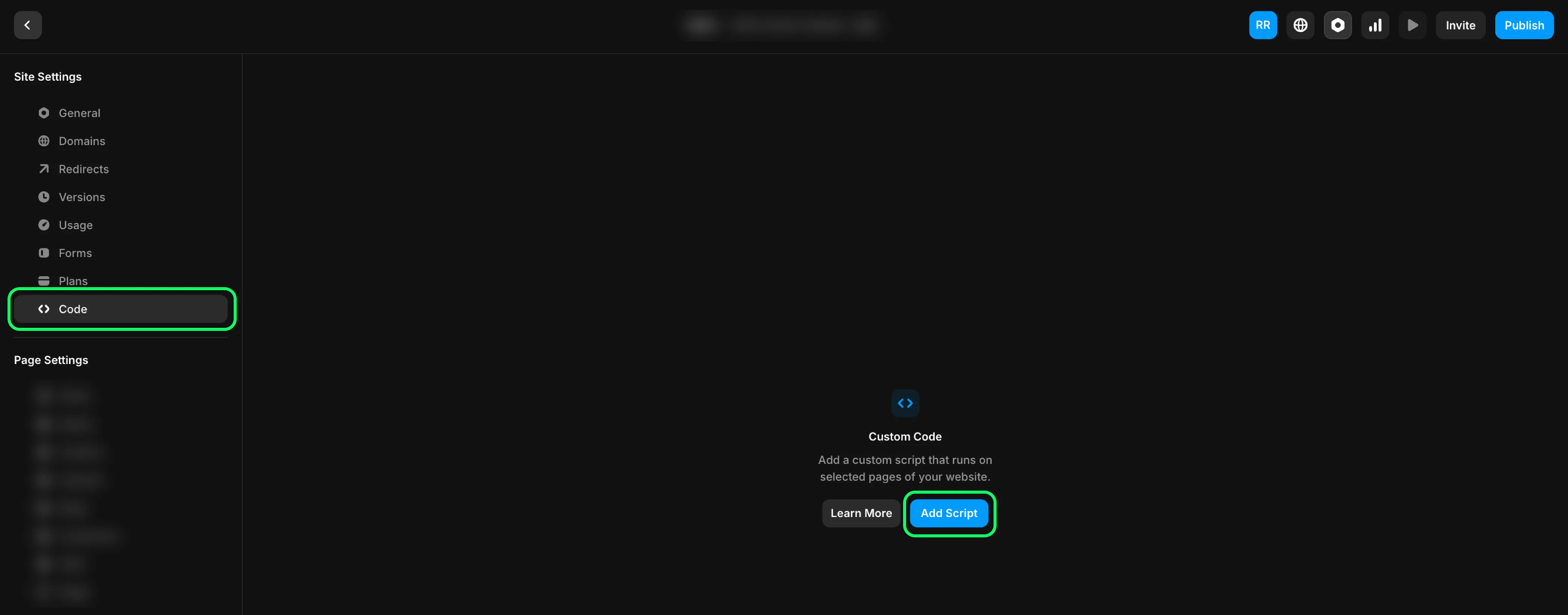
Find the custom code area on Framer
Check any custom code you used on your Framer website before. To do that.
Go to your site settings (you can find it on the top navigation bar of your canvas).

Open the settings and choose "Code"
Refer to a structure
I don't recommend starting from scratch to set up your structured data unless you have a strong coding background. To do it properly, refer to one of the well-organized websites and understand how they optimized it.
Go to Google’s Rich Results Test page and paste the main link address (https://www.domain.com), probably the home page of the website.
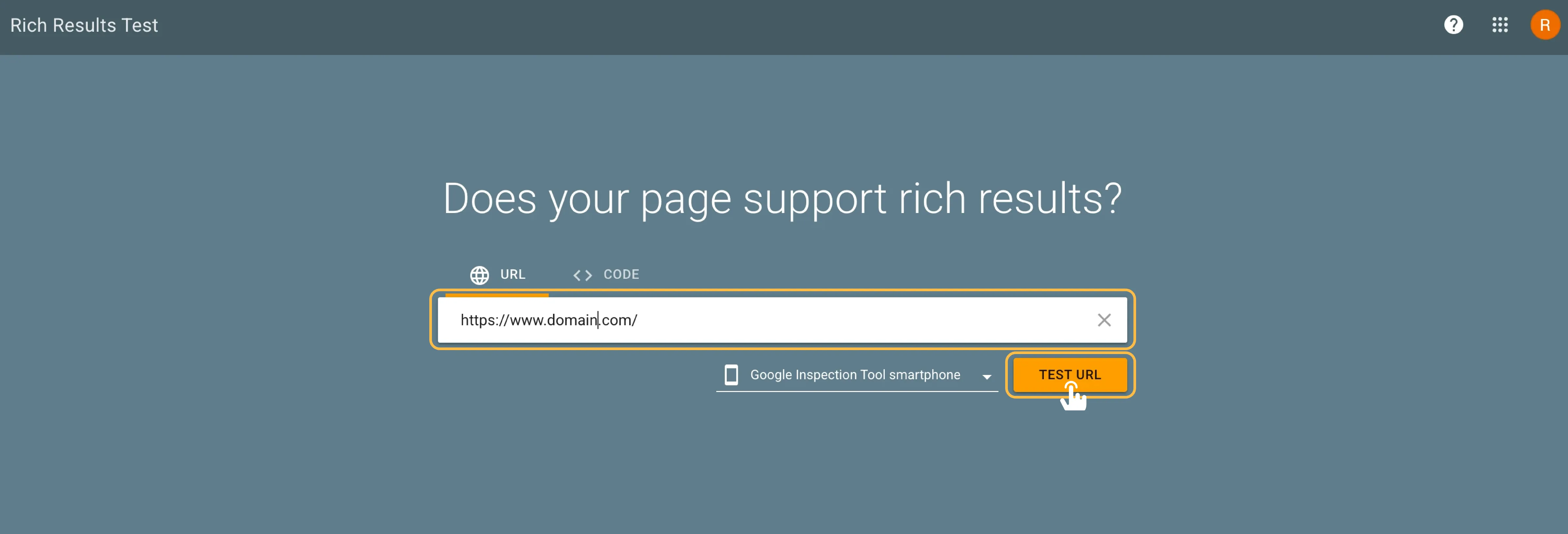
Hit the test URL button and wait for a few seconds.
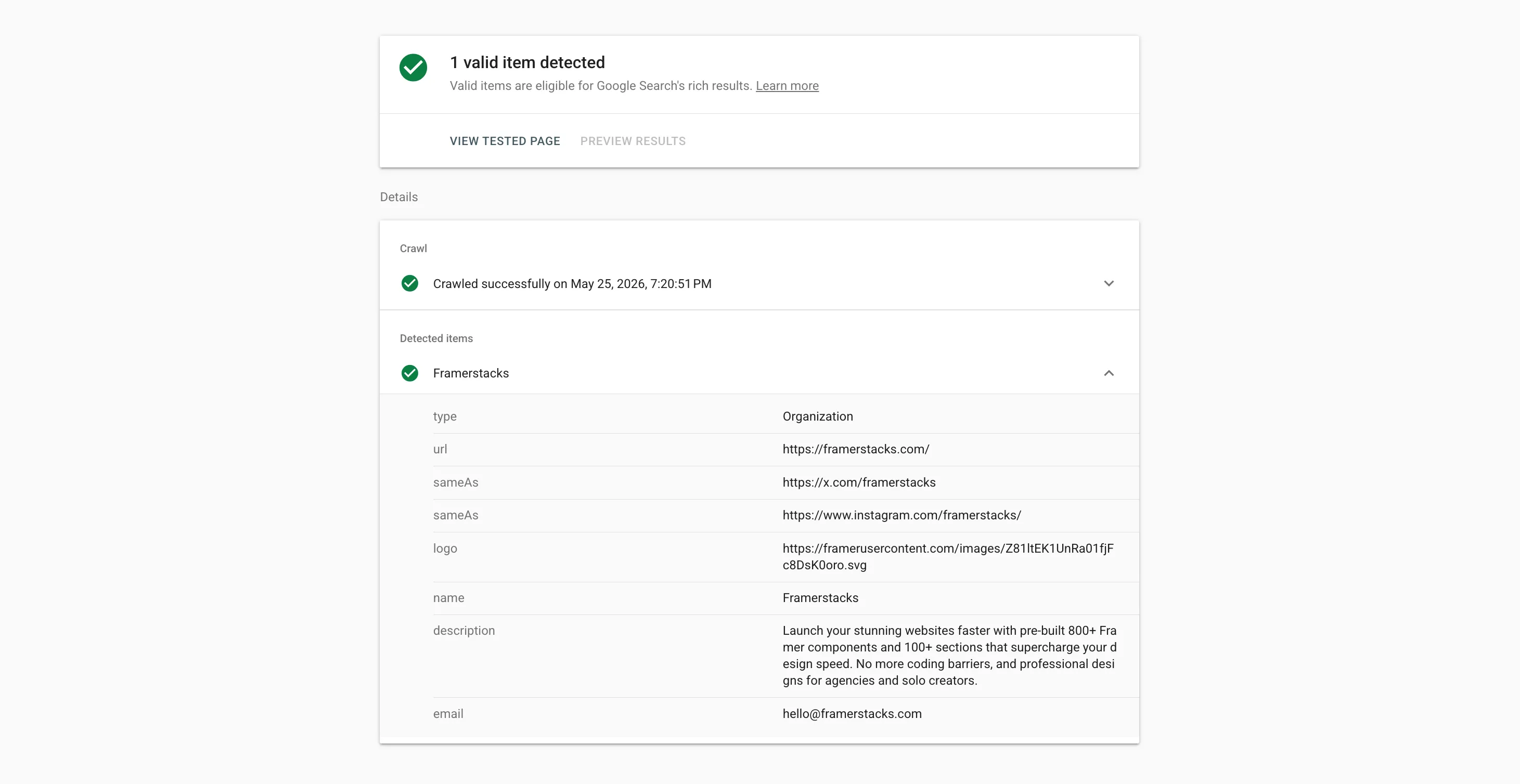
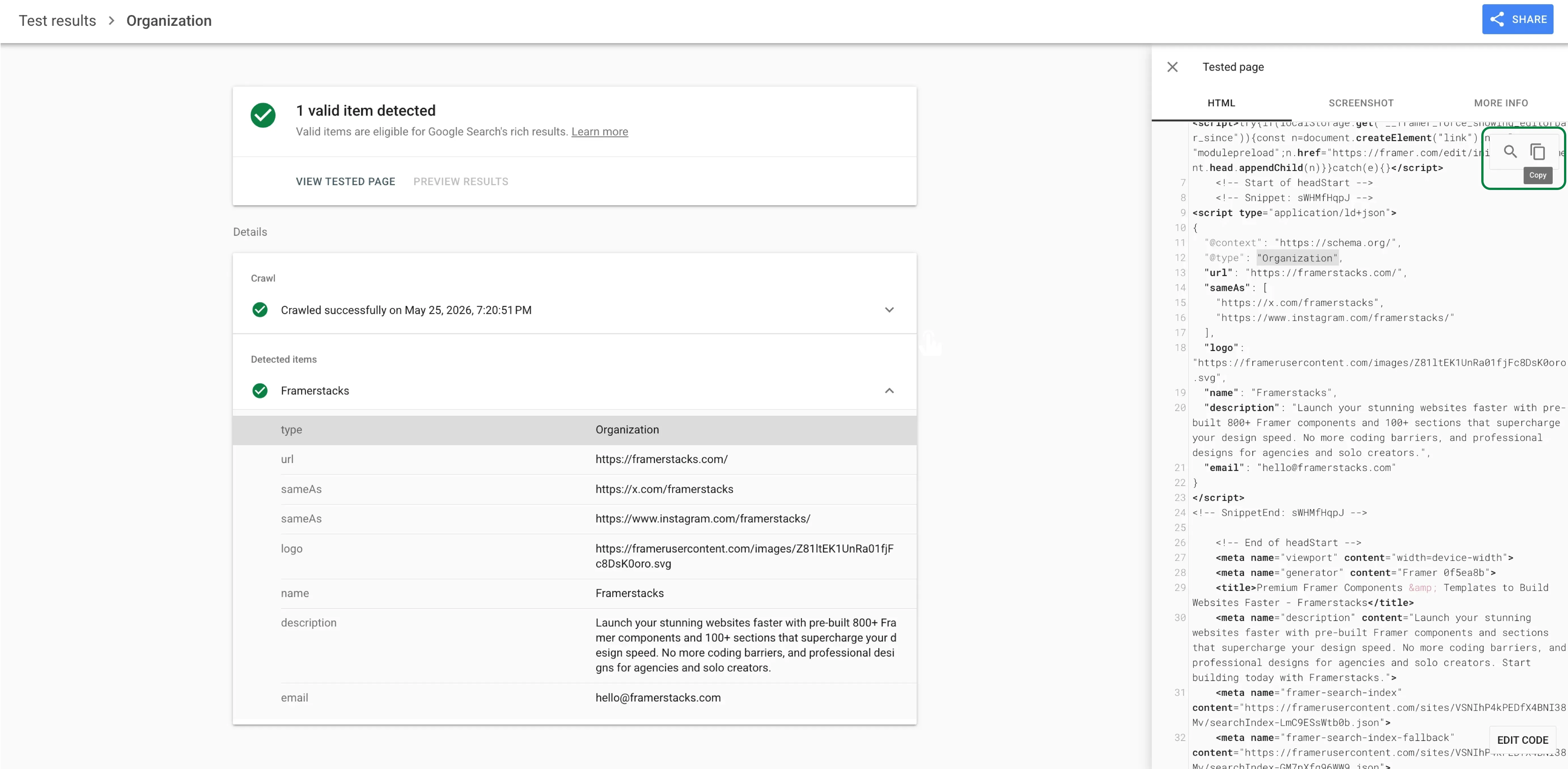
Once the test is completed, click on the Organization tab to view the format of the structured data.
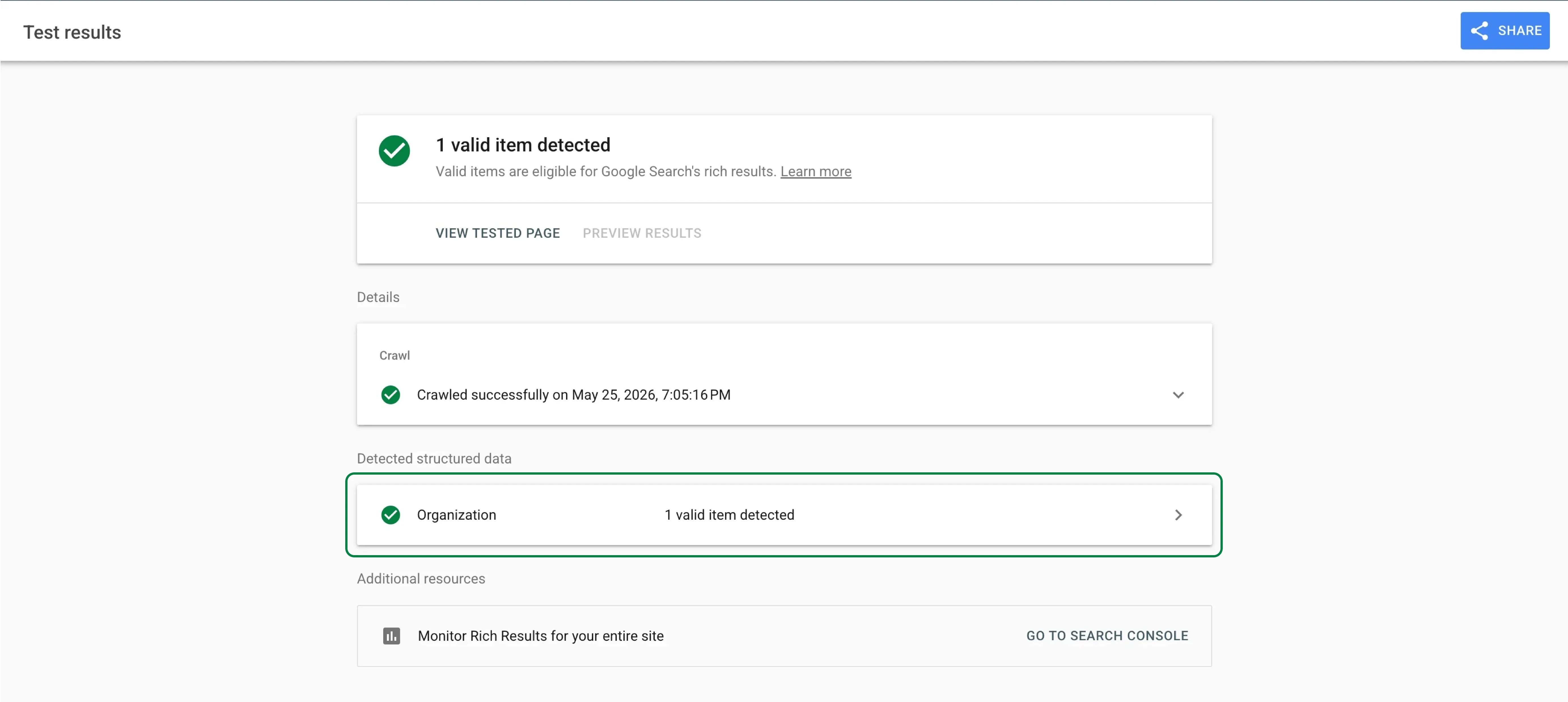
Note this, this is just a format, and you have to feed the data correctly in the code snippet.
See the image below (This is the preview of Framerstacks)
Click any property, and an overlay will open on the right that contains HTML code. Copy the entire HTML code and paste it into any AI tool, then give the prompt to extract structured data from the provided HTML file.
Create your structured data for general pages
After you get the extracted format, head over to the Framer code block area and click on the Add script button.
Name the script, change the placement to "Start of <head>". Refer to the image below and follow the exact steps.
Once everything is set, click on the "Save" button and just run a test again on Google's rich result tool.
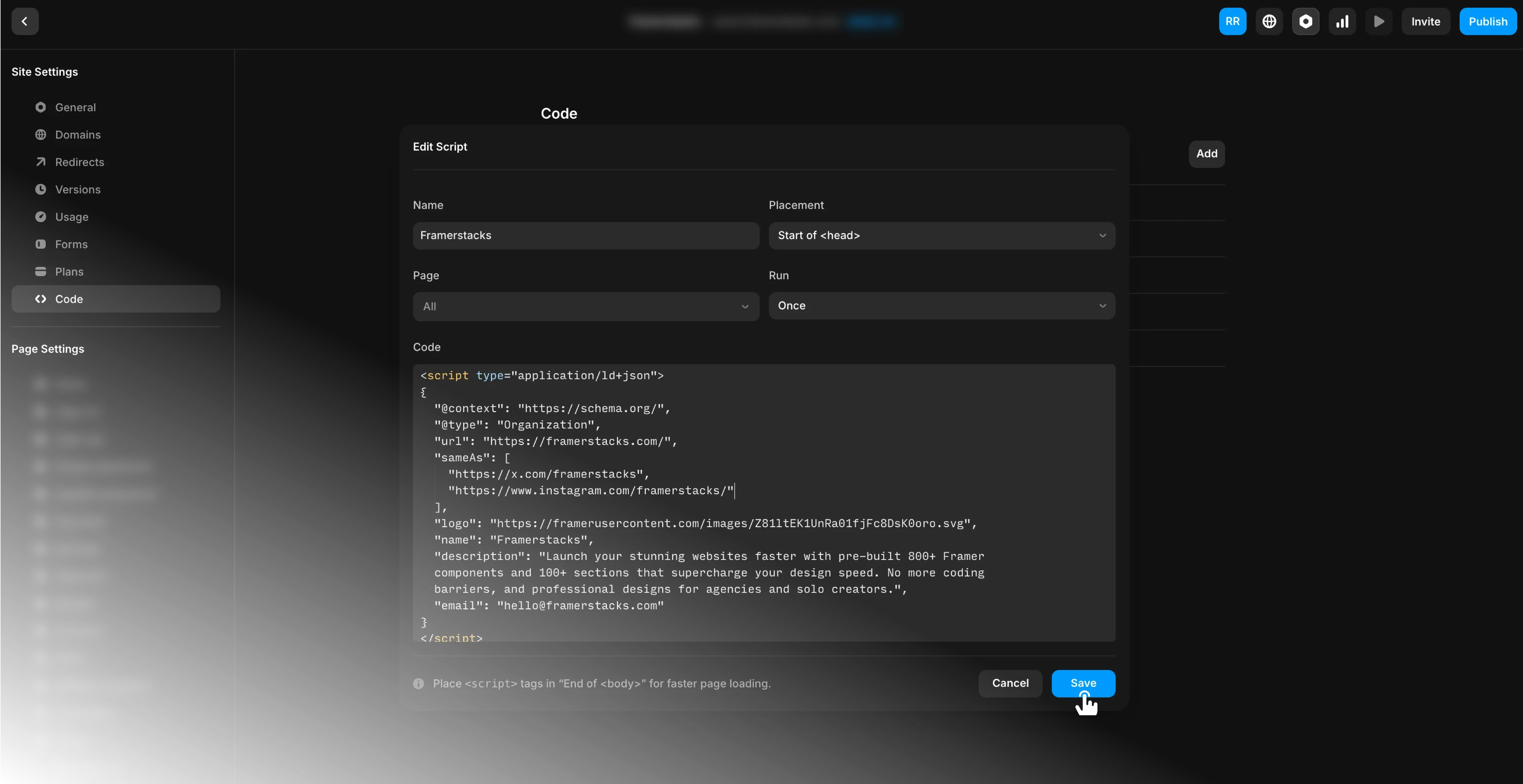
Hope it will work, and you can preview the live structured data that you feed through the code script. If you need support to set up your website's structured data, contact us, and we will provide you with a possible solution.
Note that this is the setup for general pages such as home, contact, about, etc. For CMS pages, it is highly recommended to add dynamic structured data. It means that each CMS page's data will be automatically reset to the relative page data.
Let's dive into it.
Structured data for Framer CMS pages
Adding structured data to a static page is a useful and easy task, but things become even more powerful when working with Framer CMS pages. If you have blog posts, case studies, templates, or any CMS-powered content, creating unique structured data for every detail page helps search engines and AI systems understand each page individually.
The manual creation of a separate JSON-LD snippet for every page doesn't make sense, and it consumes more effort. So, Framer allows you to dynamically reference CMS fields using the {{}} syntax that we normally use on page SEO (page settings). This means the structured data automatically updates based on the content of each CMS page. Pretty cool, right?
Suppose you have a CMS collection and have some fields such as
Title
Description
Publish date
Author
Banner image
Category
All of these field data can be embedded dynamically into your JSON -LD snippet.
See the image below for an example.
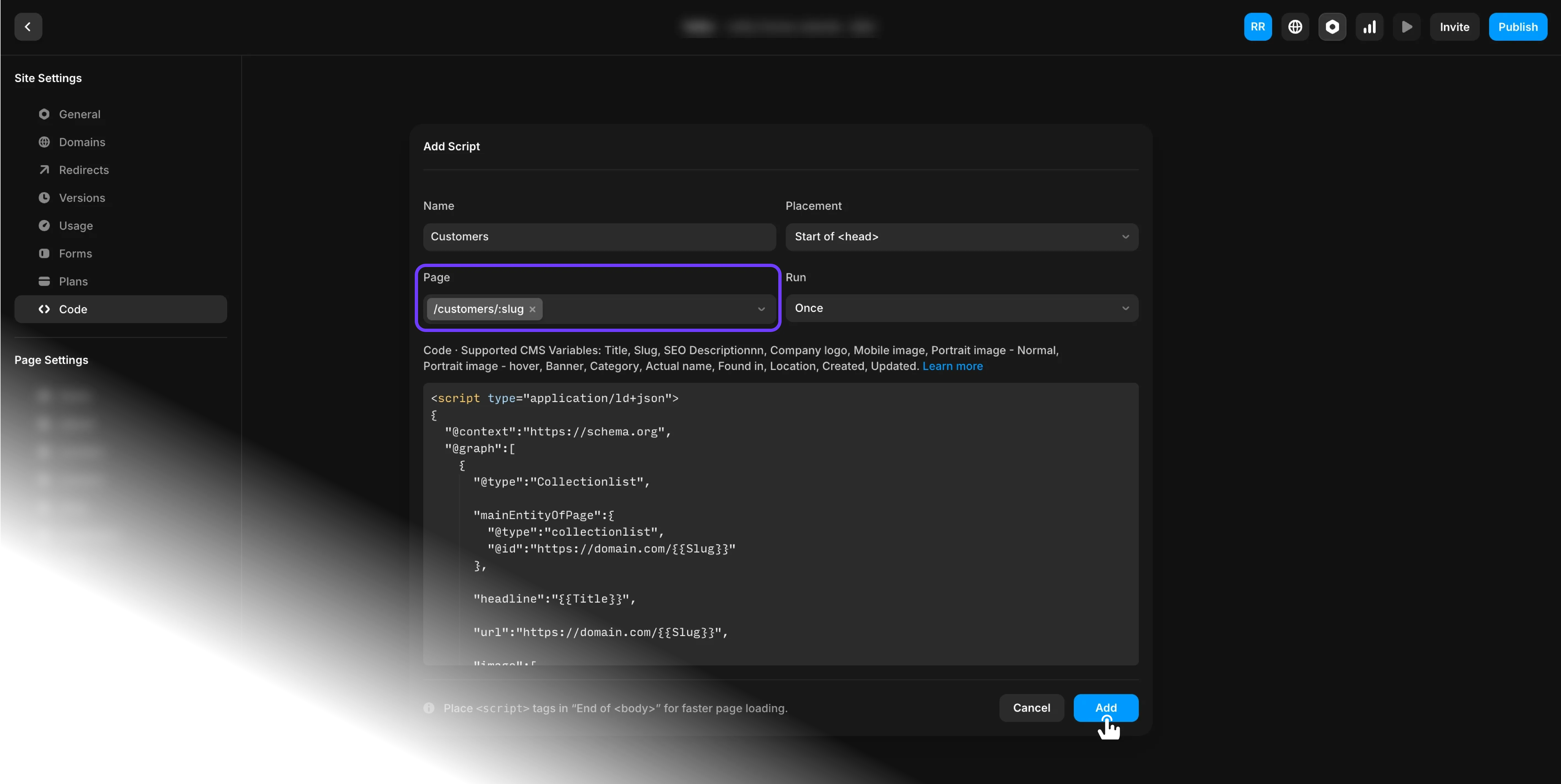
Note that you have named the snippet correctly, changed the page to /cms/:slug, and formatted the values correctly for JSON output.
For example:
{{Title | json}}
{{Description | json}}
{{Publish date | json}}
{{Author | json}}
{{Banner image | json}}
{{Category | json}}
The | json filter ensures that the content is formatted safely for JSON output. It automatically handles special characters, quotation marks, line breaks, and other formatting issues that could otherwise break the JSON-LD code.
Without this formatting, your structured data may generate errors or become invalid. By using the proper syntax, you can create scalable, dynamic structured data in which every CMS detail page automatically generates its own unique metadata.
Although, I recommend to follow the same steps as mentioned above to create a general page structured data. But note that, here you need to extract the specially formatted code for CMS detail pages. So, refer to a CMS page link to extract and transform the code script.
Copy the script below, replace the relevant data with your business info and paste into the Framer code script block.
Once everything is set, run a test and make sure the structured data is properly validated.
Validate your structured data
The easiest way to do this is by using Google’s Rich Results Test. Simply paste your website URL to check the general pages or the CMS detail page URL to check the dynamic CMS collection data, and it will check whether your structured data is valid and readable by search engines.
So before rescanning your website for the AEO score, make sure to validate your structured data first.
Support
Need support, or if you find the structured data setup confusing or run into errors while implementing JSON-LD in Framer? Connect with us. Our support team can take care of this matter.
Got an article suggestion? Let us know