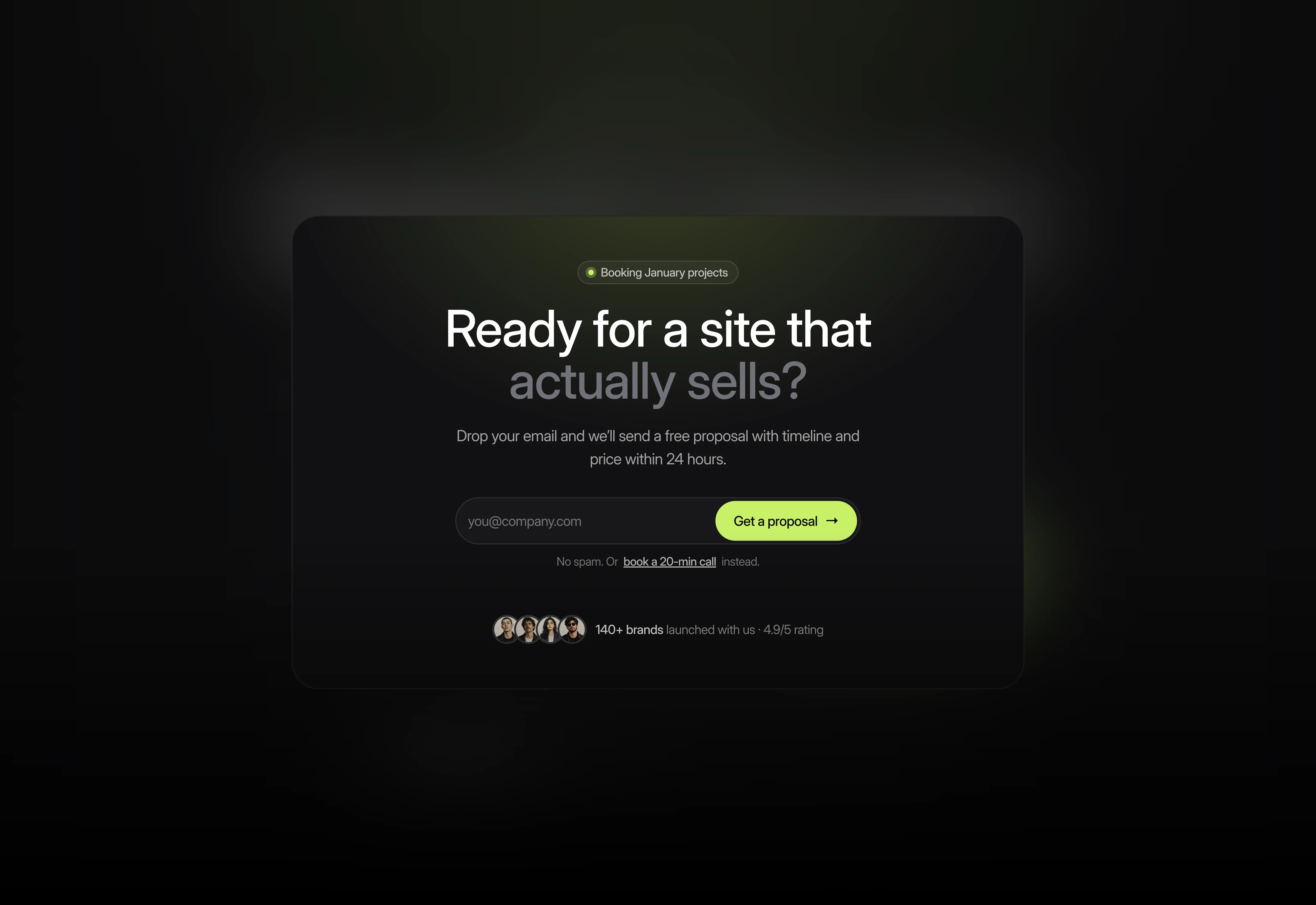
Call to action

A light themed minimal style cta section for framer.

Last updated on:

Updated on:

Available variants

A dark themed minimal style cta section for framer. UI optimized for Desktop breakpoint.
A dark themed minimal style cta section for framer. UI optimized for tablet breakpoint.
A dark themed minimal style cta section for framer. UI optimized for phone breakpoint.
A light themed minimal style cta section for framer. UI optimized for Desktop breakpoint.
A light themed minimal style cta section for framer. UI optimized for tablet breakpoint.
A light themed minimal style cta section for framer. UI optimized for phone breakpoint.

Minimal Lead Capture CTA Section

This section is a minimal lead capture call to action for Framer, made to sit just above the footer.

...
...

Variants:

6

Breakpoints

Theme:

Please note: This component is available only for active license holders. Sign in with your license key or purchase one.

Copying disabled

How to use the component?

  • Copy this call-to-action section using the copy button above.

  • Unable to copy? Sign in and try again.

  • Paste it on your canvas.

  • Important: set a form destination before publishing. Select the Form layer inside CTA 6 and add your email address or a webhook in the right panel.

  • Edit the eyebrow, heading, paragraph, note, and proof line directly on the canvas. The heading has two text runs so that you can keep the second half in the muted grey.

  • The button is an instance of CTA 6 Submit. Change its Label in the right panel, and edit the Sending, Success, and Error variants inside the component to change the messages visitors see after they submit.

  • Point the “book a 20-min call” link to your booking page, and swap the four avatar images for your own clients or team.

  • To change the accent, update the lime fill on the CTA 6 Submit variants, the eyebrow dot, and the glow gradient at the top of the panel.

  • Nested component: CTA 6 Submit (Default, Hover, Pending, Success, and Error variants), which the form uses as its submit button. Keep it in your project when you copy the section.

  • Phone: the email field and button stack at full width, and the proof line sits under the avatars.

Where to use?

  • Use it just above the footer of an agency, studio, freelancer, or SaaS website to turn visitors who scrolled the whole page into leads.

  • Pair it with a contact section for longer enquiries, or a newsletter form if you want a softer sign-up.

LIMITED TIME OFFER

Launch amazing websites with

Framerstacks

Still trying to design and launch a website from scratch? Check out 800+ pre-built Framer components and sections that 10x your design speed.

Life time access

Save hundreds of hours

10x design speed

Weekly new releases

Premium designs

Color theme responsiveness

Starts from

$79.00

$99

One-time

Minimal Lead Capture CTA Section

This section is a minimal lead capture call to action for Framer, made to sit just above the footer.

...
...

Variants:

6

Breakpoints

Theme:

Please note: This component is available only for active license holders. Sign in with your license key or purchase one.

Copying disabled

How to use the component?

  • Copy this call-to-action section using the copy button above.

  • Unable to copy? Sign in and try again.

  • Paste it on your canvas.

  • Important: set a form destination before publishing. Select the Form layer inside CTA 6 and add your email address or a webhook in the right panel.

  • Edit the eyebrow, heading, paragraph, note, and proof line directly on the canvas. The heading has two text runs so that you can keep the second half in the muted grey.

  • The button is an instance of CTA 6 Submit. Change its Label in the right panel, and edit the Sending, Success, and Error variants inside the component to change the messages visitors see after they submit.

  • Point the “book a 20-min call” link to your booking page, and swap the four avatar images for your own clients or team.

  • To change the accent, update the lime fill on the CTA 6 Submit variants, the eyebrow dot, and the glow gradient at the top of the panel.

  • Nested component: CTA 6 Submit (Default, Hover, Pending, Success, and Error variants), which the form uses as its submit button. Keep it in your project when you copy the section.

  • Phone: the email field and button stack at full width, and the proof line sits under the avatars.

Where to use?

  • Use it just above the footer of an agency, studio, freelancer, or SaaS website to turn visitors who scrolled the whole page into leads.

  • Pair it with a contact section for longer enquiries, or a newsletter form if you want a softer sign-up.

LIMITED TIME OFFER

Launch amazing websites with

Framerstacks

Still trying to design and launch a website from scratch? Check out 800+ pre-built Framer components and sections that 10x your design speed.

Life time access

Save hundreds of hours

10x design speed

Weekly new releases

Premium designs

Color theme responsiveness

Starts from

$79.00

$99

One-time

Minimal Lead Capture CTA Section

This section is a minimal lead capture call to action for Framer, made to sit just above the footer.

...
...

Variants:

6

Breakpoints

Theme:

Please note: This component is available only for active license holders. Sign in with your license key or purchase one.

Copying disabled

How to use the component?

  • Copy this call-to-action section using the copy button above.

  • Unable to copy? Sign in and try again.

  • Paste it on your canvas.

  • Important: set a form destination before publishing. Select the Form layer inside CTA 6 and add your email address or a webhook in the right panel.

  • Edit the eyebrow, heading, paragraph, note, and proof line directly on the canvas. The heading has two text runs so that you can keep the second half in the muted grey.

  • The button is an instance of CTA 6 Submit. Change its Label in the right panel, and edit the Sending, Success, and Error variants inside the component to change the messages visitors see after they submit.

  • Point the “book a 20-min call” link to your booking page, and swap the four avatar images for your own clients or team.

  • To change the accent, update the lime fill on the CTA 6 Submit variants, the eyebrow dot, and the glow gradient at the top of the panel.

  • Nested component: CTA 6 Submit (Default, Hover, Pending, Success, and Error variants), which the form uses as its submit button. Keep it in your project when you copy the section.

  • Phone: the email field and button stack at full width, and the proof line sits under the avatars.

Where to use?

  • Use it just above the footer of an agency, studio, freelancer, or SaaS website to turn visitors who scrolled the whole page into leads.

  • Pair it with a contact section for longer enquiries, or a newsletter form if you want a softer sign-up.

LIMITED TIME OFFER

Launch amazing websites with

Framerstacks

Still trying to design and launch a website from scratch? Check out 800+ pre-built Framer components and sections that 10x your design speed.

Life time access

Save hundreds of hours

10x design speed

Weekly new releases

Premium designs

Color theme responsiveness

Starts from

$79.00

$99

One-time

Minimal Lead Capture CTA Section

This section is a minimal lead capture call to action for Framer, made to sit just above the footer.

...
...

Variants:

6

Breakpoints

Theme:

Please note: This component is available only for active license holders. Sign in with your license key or purchase one.

Copying disabled

How to use the component?

  • Copy this call-to-action section using the copy button above.

  • Unable to copy? Sign in and try again.

  • Paste it on your canvas.

  • Important: set a form destination before publishing. Select the Form layer inside CTA 6 and add your email address or a webhook in the right panel.

  • Edit the eyebrow, heading, paragraph, note, and proof line directly on the canvas. The heading has two text runs so that you can keep the second half in the muted grey.

  • The button is an instance of CTA 6 Submit. Change its Label in the right panel, and edit the Sending, Success, and Error variants inside the component to change the messages visitors see after they submit.

  • Point the “book a 20-min call” link to your booking page, and swap the four avatar images for your own clients or team.

  • To change the accent, update the lime fill on the CTA 6 Submit variants, the eyebrow dot, and the glow gradient at the top of the panel.

  • Nested component: CTA 6 Submit (Default, Hover, Pending, Success, and Error variants), which the form uses as its submit button. Keep it in your project when you copy the section.

  • Phone: the email field and button stack at full width, and the proof line sits under the avatars.

Where to use?

  • Use it just above the footer of an agency, studio, freelancer, or SaaS website to turn visitors who scrolled the whole page into leads.

  • Pair it with a contact section for longer enquiries, or a newsletter form if you want a softer sign-up.

LIMITED TIME OFFER

Launch amazing websites with

Framerstacks

Still trying to design and launch a website from scratch? Check out 800+ pre-built Framer components and sections that 10x your design speed.

Life time access

Save hundreds of hours

10x design speed

Weekly new releases

Premium designs

Color theme responsiveness

Starts from

$79.00

$99

One-time

Library overview

Framerstacks hosts one of the largest collections of pre-built Framer components and website sections. With 270+ professionally designed components and 1000+ variants.

Our library spans 120+ webpage section categories, enabling creators to build beautiful, high-performance websites in Framer faster than ever.

Explore the main library page.

Contribution

Have something creative on your mind? Or wish to become a contributor inside Framerstacks?

You're welcome. Join as a contributor and help to shape the future of the high-quality Framer components and sections gallery. Head over to the submission page and contribute.

Support

If you need any further support related to this specific component or section, please get in touch at hello@framerstacks.com

One of our customer support team members will get in touch with you within 24 hours.

To report an issue with the product, purchase, functionality, submit a ticket.

Just like more components

A light themed clean call to action section with ticker effect for Framer web design.

Call to Action Section with Ticker for Framer

Oct 24, 2026

Call to Action for Framer Split Layout

Aug 15, 2026

Promotional CTA Banner for Framer Websites

Aug 15, 2026

Discount Offer CTA Section for Framer

Aug 15, 2026

Call to Action for Framer Centered Banner

Aug 15, 2026

The FAQs

Have questions? We got you…

Everything you need to know about our product and billing.

What is Framerstack?

Is there a free plan available?

What about the refund policy?

How I can avail my user license?

Still have questions? Or can't find the right answer? Please contact us. One of our customer support team members will get in touch with you.

Join to the community

Stay in the loop with everything you need to know.

By clicking Submit, you agree to our Privacy Policy and to receive our notifications. You can Unsubscribe anytime.

By clicking Submit, you agree to our Privacy Policy and to receive our notifications. You can Unsubscribe anytime.