Last updated on:
Updated on:
Available variants


SaaS Contact Page with Topic Form
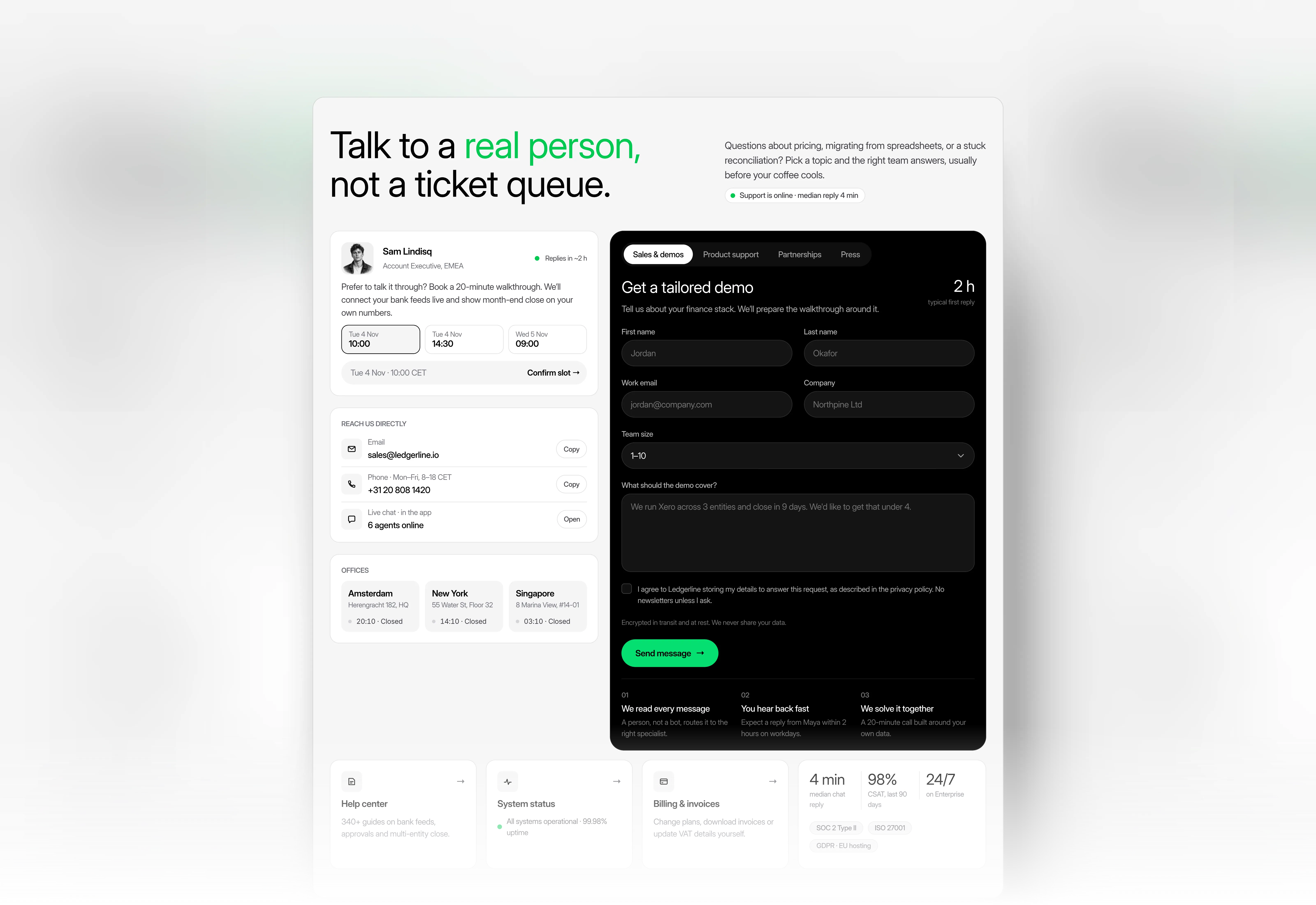
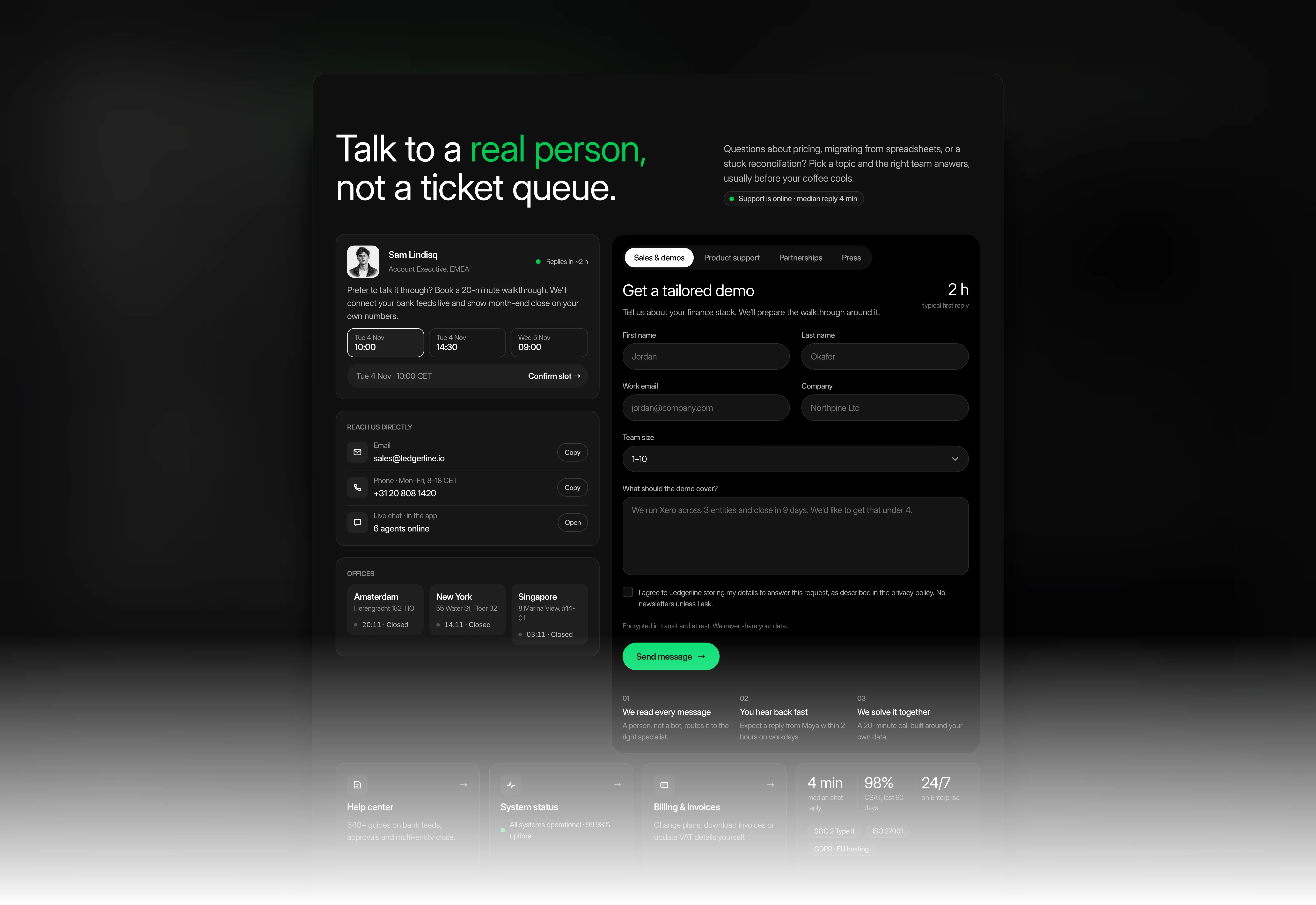
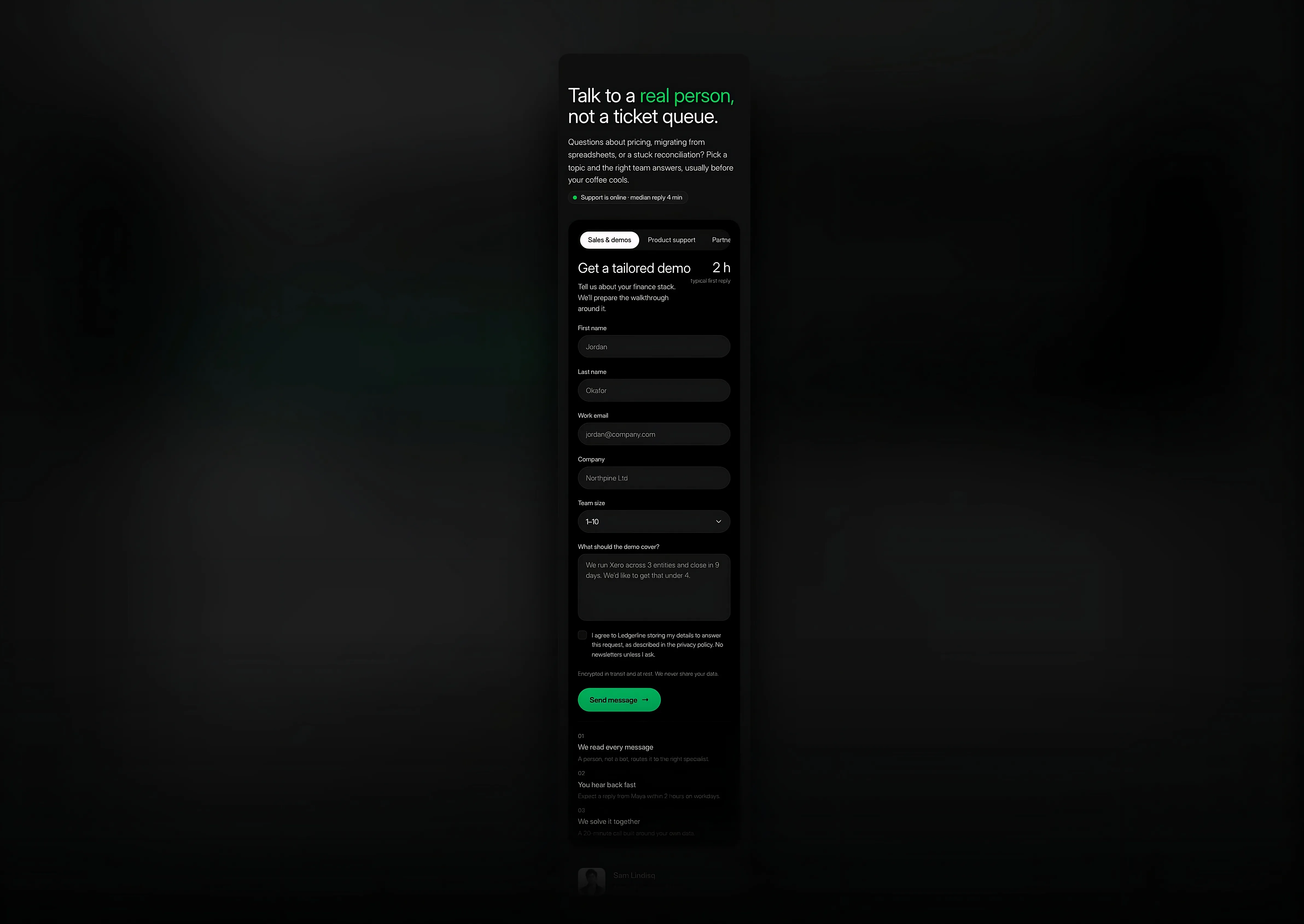
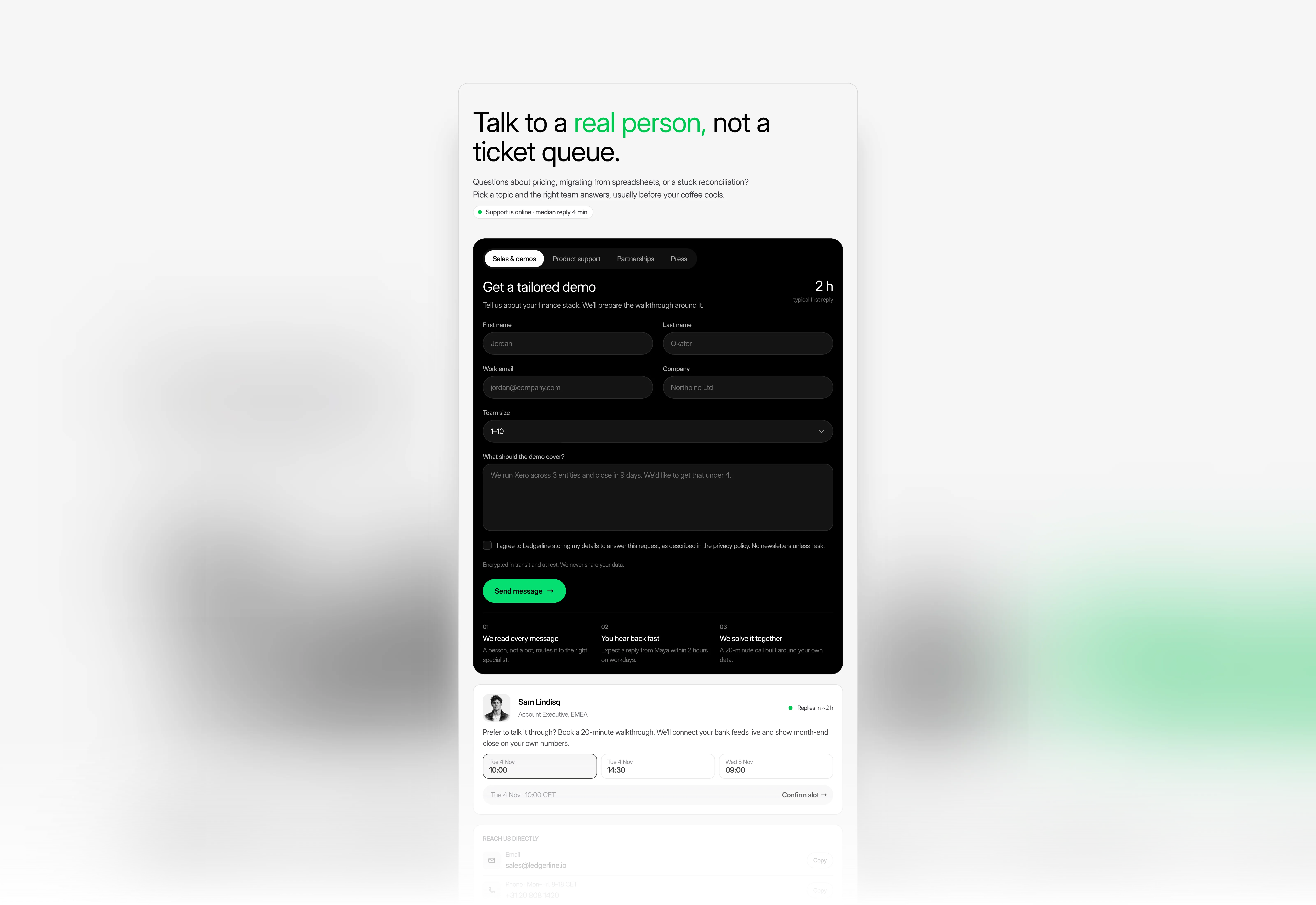
This section is a SaaS contact page for Framer that routes visitors to the right team. Tabs switch a native Framer form between sales, support, partnerships and press, each with its own fields, reply time and next steps.
Variants:
6
Breakpoints
Theme:
Please note: This component is available only for active license holders. Sign in with your license key or purchase one.
Copying disabled
How to use the component?
Sign in and copy this contact section using the button above.
Paste it on your canvas and choose the right variant for each breakpoint.
Important: set a form destination before publishing. To do that, open this Contact section and double-click on the form component, select the Form layer, and add your email address or a webhook in the right panel; otherwise, submissions go nowhere.
The form is a native Framer form inside the Contact 16 Form component, with four topic variants: Sales, Support, Partnerships, and Press. The tabs at the top of the panel switch between them.
Each topic has its own title, reply time, message prompt, placeholder, next-step text, and extra fields: team size for Sales, workspace URL and priority for Support, partnership type for Partners, and publication and deadline for Press. Edit them per variant, or delete the topics you don’t need.
Contact 16: Submit changes state automatically: Sending… while the form submits, Message sent on success and a retry message on error. Change the Panel color on the form instance to match your brand.
Replace the contact person, email, phone, chat status, office addresses, help links, and trust badges with your own details.
The code file (Contact16.tsx) holds three code components. Office Clock shows each office’s live local time with an Open or Closed status; set the time zone and opening hours. Demo Slots lets visitors pick a demo time and add your booking link. Copy Chip copies an email or phone number to the clipboard.
Nested components: Contact 16 Form (4 topic variants) and Contact 16 Submit (Default, Pending, Success and Error). Keep both, and the code file, in your project when you copy the section, or the form and live details will not work.
Tab switching, form states, clocks, slot picking, and copy buttons run in Preview and on the published site; the canvas shows a static frame.
Check out more contact sections built for different layouts and styles.
Need just a form? Browse our contact forms in the library.
Where to use?
Use it as the main contact page of a SaaS, fintech, or B2B software website, where visitors arrive with different needs: buying, getting help, partnering, or writing about you.
Pair it with an FAQ section above to answer common questions first, and a footer with your office links below.
LIMITED TIME OFFER
Launch amazing websites with
Framerstacks
Still trying to design and launch a website from scratch? Check out 800+ pre-built Framer components and sections that 10x your design speed.
Life time access
Save hundreds of hours
10x design speed
Weekly new releases
Premium designs
Color theme responsiveness
Starts from
$79.00
$99
One-time
SaaS Contact Page with Topic Form
This section is a SaaS contact page for Framer that routes visitors to the right team. Tabs switch a native Framer form between sales, support, partnerships and press, each with its own fields, reply time and next steps.
Variants:
6
Breakpoints
Theme:
Please note: This component is available only for active license holders. Sign in with your license key or purchase one.
Copying disabled
How to use the component?
Sign in and copy this contact section using the button above.
Paste it on your canvas and choose the right variant for each breakpoint.
Important: set a form destination before publishing. To do that, open this Contact section and double-click on the form component, select the Form layer, and add your email address or a webhook in the right panel; otherwise, submissions go nowhere.
The form is a native Framer form inside the Contact 16 Form component, with four topic variants: Sales, Support, Partnerships, and Press. The tabs at the top of the panel switch between them.
Each topic has its own title, reply time, message prompt, placeholder, next-step text, and extra fields: team size for Sales, workspace URL and priority for Support, partnership type for Partners, and publication and deadline for Press. Edit them per variant, or delete the topics you don’t need.
Contact 16: Submit changes state automatically: Sending… while the form submits, Message sent on success and a retry message on error. Change the Panel color on the form instance to match your brand.
Replace the contact person, email, phone, chat status, office addresses, help links, and trust badges with your own details.
The code file (Contact16.tsx) holds three code components. Office Clock shows each office’s live local time with an Open or Closed status; set the time zone and opening hours. Demo Slots lets visitors pick a demo time and add your booking link. Copy Chip copies an email or phone number to the clipboard.
Nested components: Contact 16 Form (4 topic variants) and Contact 16 Submit (Default, Pending, Success and Error). Keep both, and the code file, in your project when you copy the section, or the form and live details will not work.
Tab switching, form states, clocks, slot picking, and copy buttons run in Preview and on the published site; the canvas shows a static frame.
Check out more contact sections built for different layouts and styles.
Need just a form? Browse our contact forms in the library.
Where to use?
Use it as the main contact page of a SaaS, fintech, or B2B software website, where visitors arrive with different needs: buying, getting help, partnering, or writing about you.
Pair it with an FAQ section above to answer common questions first, and a footer with your office links below.
LIMITED TIME OFFER
Launch amazing websites with
Framerstacks
Still trying to design and launch a website from scratch? Check out 800+ pre-built Framer components and sections that 10x your design speed.
Life time access
Save hundreds of hours
10x design speed
Weekly new releases
Premium designs
Color theme responsiveness
Starts from
$79.00
$99
One-time
SaaS Contact Page with Topic Form
This section is a SaaS contact page for Framer that routes visitors to the right team. Tabs switch a native Framer form between sales, support, partnerships and press, each with its own fields, reply time and next steps.
Variants:
6
Breakpoints
Theme:
Please note: This component is available only for active license holders. Sign in with your license key or purchase one.
Copying disabled
How to use the component?
Sign in and copy this contact section using the button above.
Paste it on your canvas and choose the right variant for each breakpoint.
Important: set a form destination before publishing. To do that, open this Contact section and double-click on the form component, select the Form layer, and add your email address or a webhook in the right panel; otherwise, submissions go nowhere.
The form is a native Framer form inside the Contact 16 Form component, with four topic variants: Sales, Support, Partnerships, and Press. The tabs at the top of the panel switch between them.
Each topic has its own title, reply time, message prompt, placeholder, next-step text, and extra fields: team size for Sales, workspace URL and priority for Support, partnership type for Partners, and publication and deadline for Press. Edit them per variant, or delete the topics you don’t need.
Contact 16: Submit changes state automatically: Sending… while the form submits, Message sent on success and a retry message on error. Change the Panel color on the form instance to match your brand.
Replace the contact person, email, phone, chat status, office addresses, help links, and trust badges with your own details.
The code file (Contact16.tsx) holds three code components. Office Clock shows each office’s live local time with an Open or Closed status; set the time zone and opening hours. Demo Slots lets visitors pick a demo time and add your booking link. Copy Chip copies an email or phone number to the clipboard.
Nested components: Contact 16 Form (4 topic variants) and Contact 16 Submit (Default, Pending, Success and Error). Keep both, and the code file, in your project when you copy the section, or the form and live details will not work.
Tab switching, form states, clocks, slot picking, and copy buttons run in Preview and on the published site; the canvas shows a static frame.
Check out more contact sections built for different layouts and styles.
Need just a form? Browse our contact forms in the library.
Where to use?
Use it as the main contact page of a SaaS, fintech, or B2B software website, where visitors arrive with different needs: buying, getting help, partnering, or writing about you.
Pair it with an FAQ section above to answer common questions first, and a footer with your office links below.
LIMITED TIME OFFER
Launch amazing websites with
Framerstacks
Still trying to design and launch a website from scratch? Check out 800+ pre-built Framer components and sections that 10x your design speed.
Life time access
Save hundreds of hours
10x design speed
Weekly new releases
Premium designs
Color theme responsiveness
Starts from
$79.00
$99
One-time
SaaS Contact Page with Topic Form
This section is a SaaS contact page for Framer that routes visitors to the right team. Tabs switch a native Framer form between sales, support, partnerships and press, each with its own fields, reply time and next steps.
Variants:
6
Breakpoints
Theme:
Please note: This component is available only for active license holders. Sign in with your license key or purchase one.
Copying disabled
How to use the component?
Sign in and copy this contact section using the button above.
Paste it on your canvas and choose the right variant for each breakpoint.
Important: set a form destination before publishing. To do that, open this Contact section and double-click on the form component, select the Form layer, and add your email address or a webhook in the right panel; otherwise, submissions go nowhere.
The form is a native Framer form inside the Contact 16 Form component, with four topic variants: Sales, Support, Partnerships, and Press. The tabs at the top of the panel switch between them.
Each topic has its own title, reply time, message prompt, placeholder, next-step text, and extra fields: team size for Sales, workspace URL and priority for Support, partnership type for Partners, and publication and deadline for Press. Edit them per variant, or delete the topics you don’t need.
Contact 16: Submit changes state automatically: Sending… while the form submits, Message sent on success and a retry message on error. Change the Panel color on the form instance to match your brand.
Replace the contact person, email, phone, chat status, office addresses, help links, and trust badges with your own details.
The code file (Contact16.tsx) holds three code components. Office Clock shows each office’s live local time with an Open or Closed status; set the time zone and opening hours. Demo Slots lets visitors pick a demo time and add your booking link. Copy Chip copies an email or phone number to the clipboard.
Nested components: Contact 16 Form (4 topic variants) and Contact 16 Submit (Default, Pending, Success and Error). Keep both, and the code file, in your project when you copy the section, or the form and live details will not work.
Tab switching, form states, clocks, slot picking, and copy buttons run in Preview and on the published site; the canvas shows a static frame.
Check out more contact sections built for different layouts and styles.
Need just a form? Browse our contact forms in the library.
Where to use?
Use it as the main contact page of a SaaS, fintech, or B2B software website, where visitors arrive with different needs: buying, getting help, partnering, or writing about you.
Pair it with an FAQ section above to answer common questions first, and a footer with your office links below.
LIMITED TIME OFFER
Launch amazing websites with
Framerstacks
Still trying to design and launch a website from scratch? Check out 800+ pre-built Framer components and sections that 10x your design speed.
Life time access
Save hundreds of hours
10x design speed
Weekly new releases
Premium designs
Color theme responsiveness
Starts from
$79.00
$99
One-time
Library overview
Framerstacks hosts one of the largest collections of pre-built Framer components and website sections. With 270+ professionally designed components and 1000+ variants.
Our library spans 120+ webpage section categories, enabling creators to build beautiful, high-performance websites in Framer faster than ever.
Explore the main library page.
Contribution
Have something creative on your mind? Or wish to become a contributor inside Framerstacks?
You're welcome. Join as a contributor and help to shape the future of the high-quality Framer components and sections gallery. Head over to the submission page and contribute.
Support
If you need any further support related to this specific component or section, please get in touch at hello@framerstacks.com
One of our customer support team members will get in touch with you within 24 hours.
To report an issue with the product, purchase, functionality, submit a ticket.
Just like more components
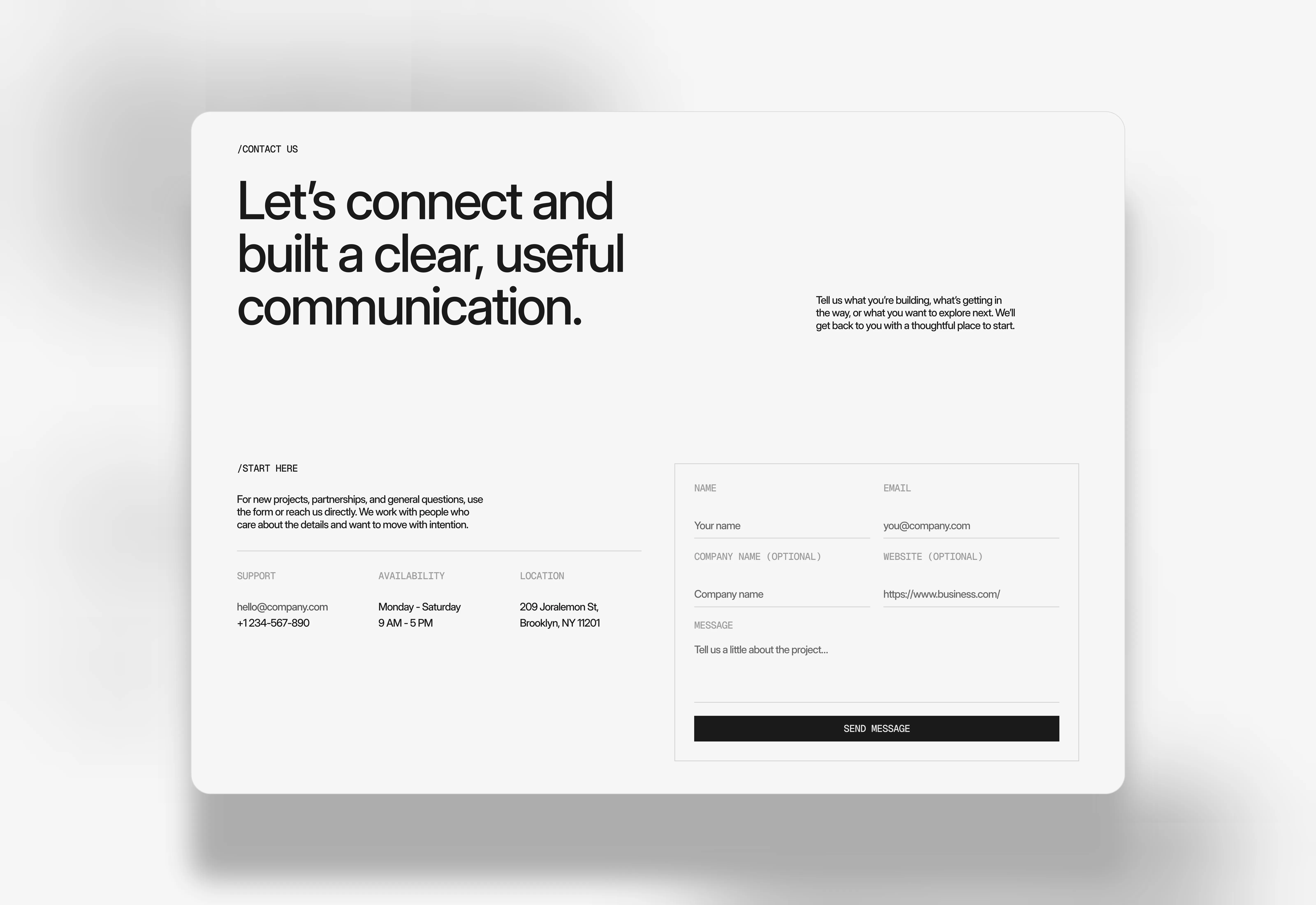
Minimal Style Contact Page Section for Framer Portfolio Sites
Oct 26, 2026
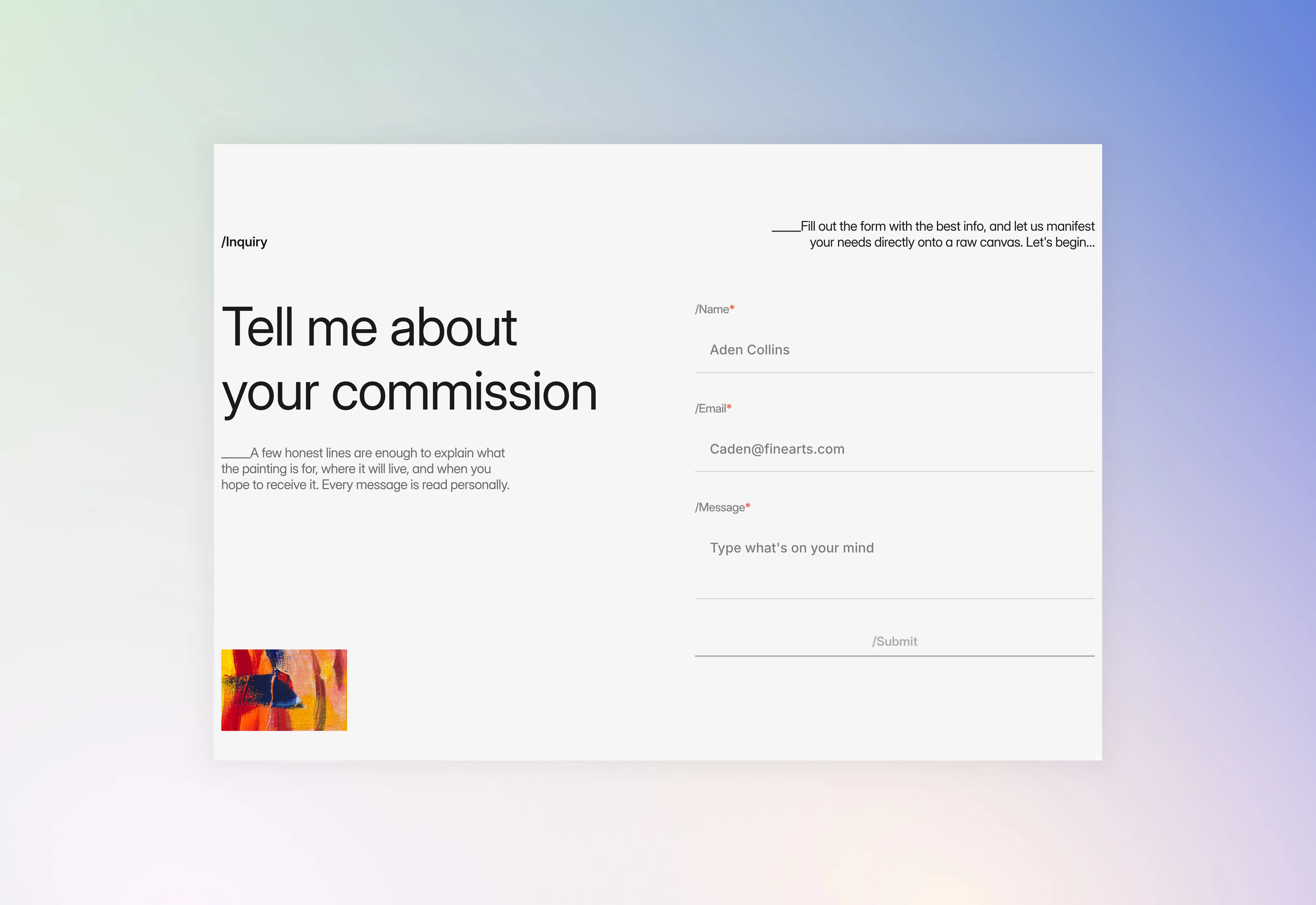
Minimal Contact Page Hero Section
Sep 20, 2026
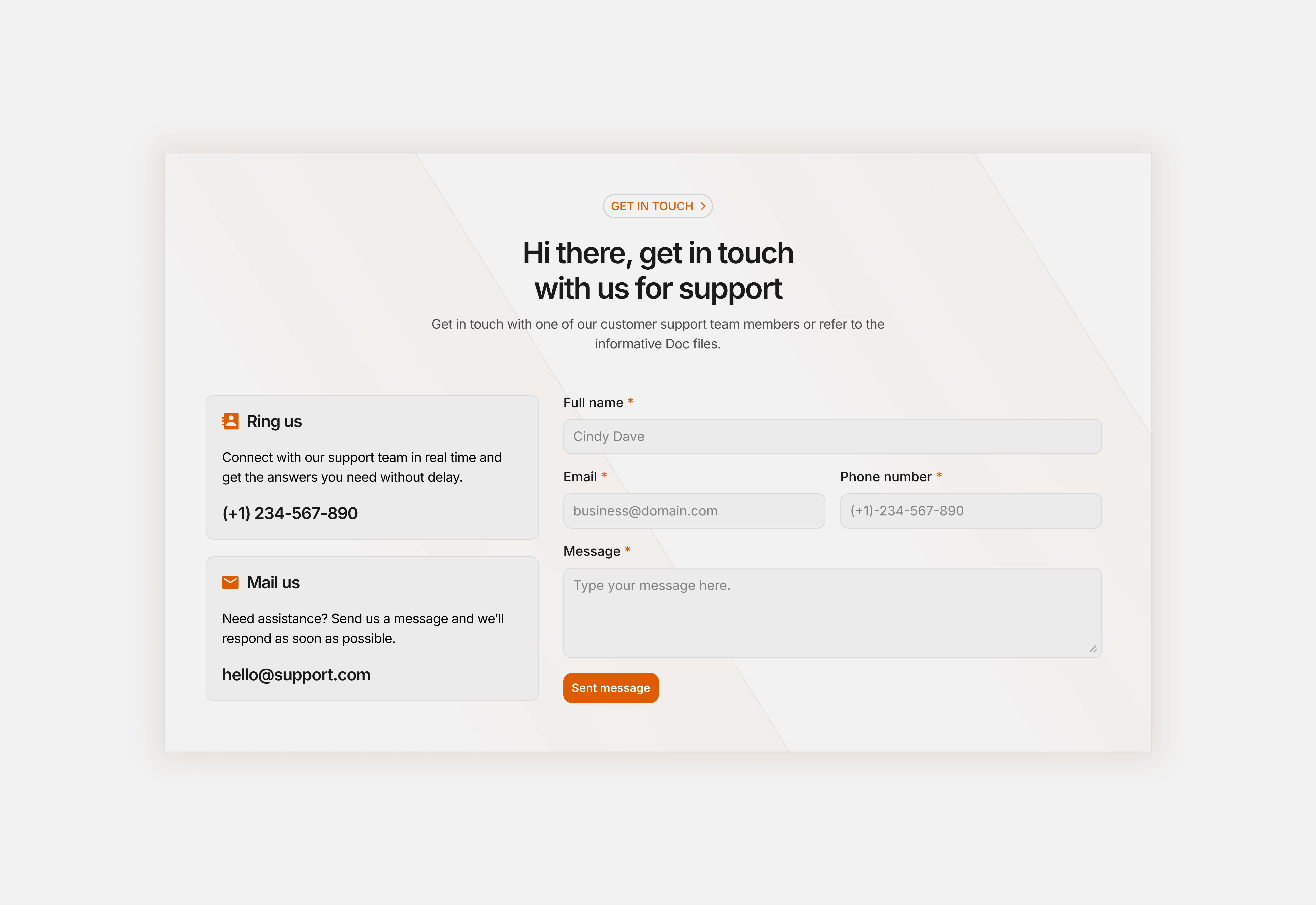
Contact Page for Framer Sidebar Layout
Aug 14, 2026
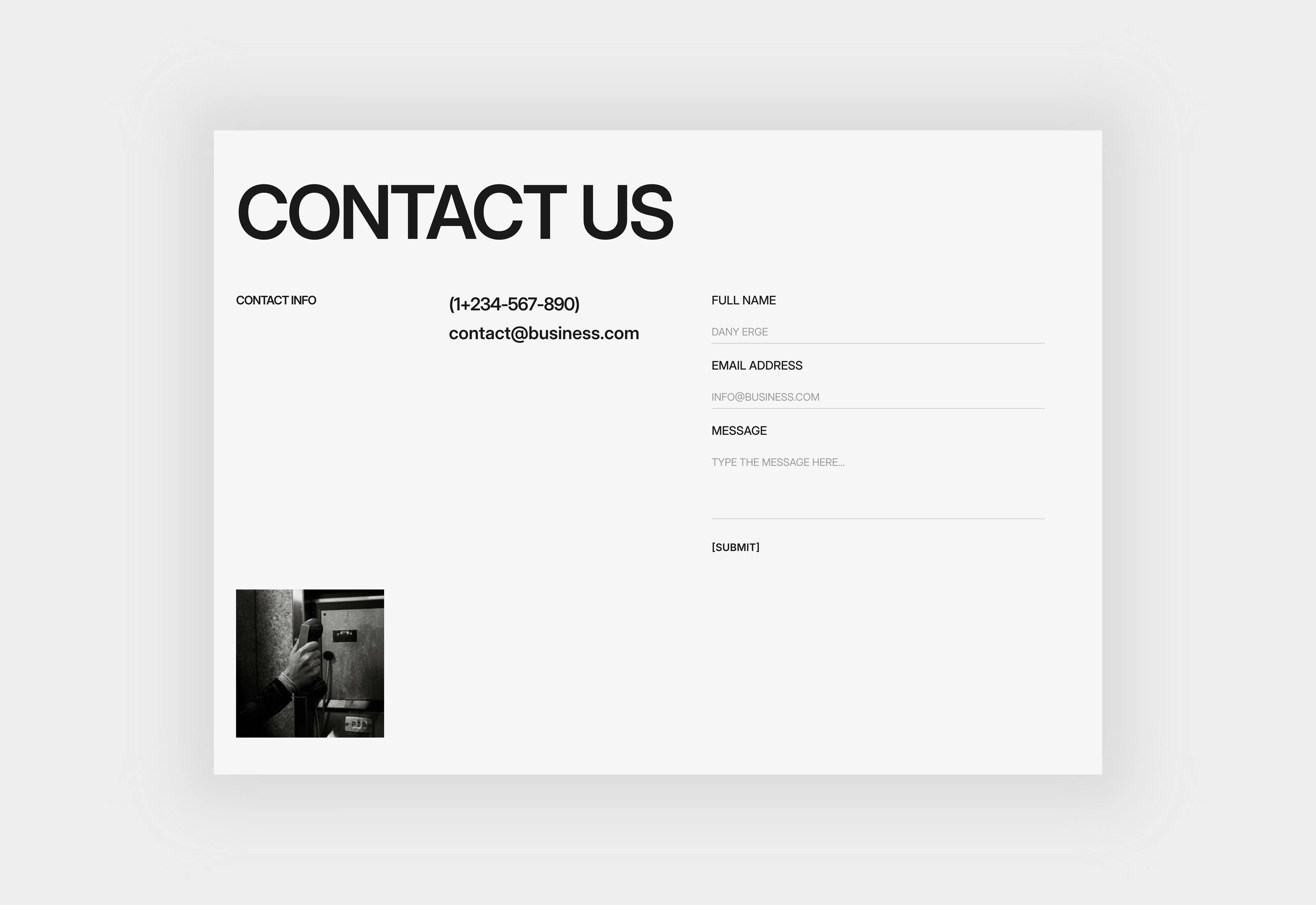
Contact Page Section for Framer Boxed Layout
Aug 14, 2026
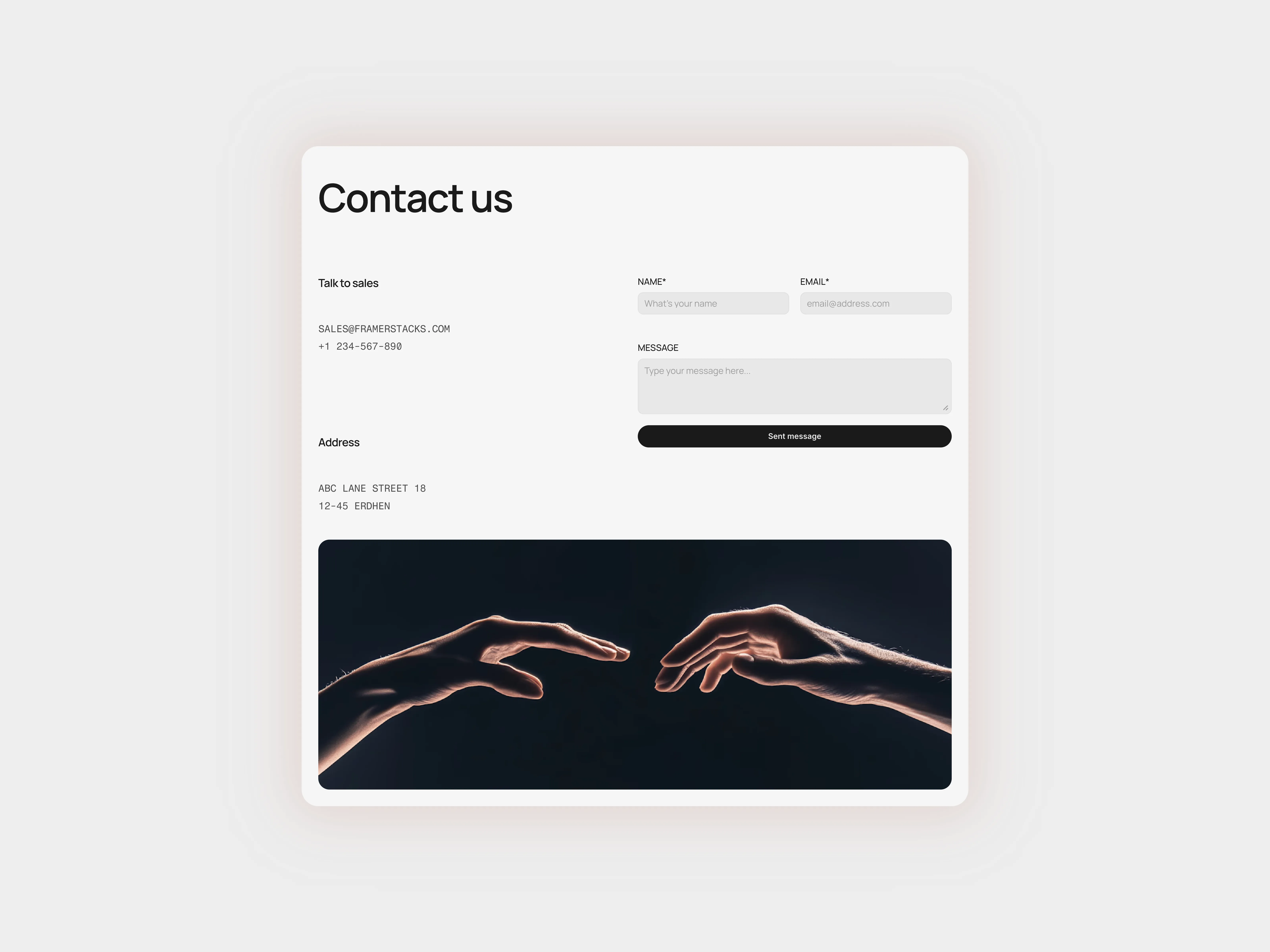
Contact Page Section for Framer Full Width
Aug 14, 2026
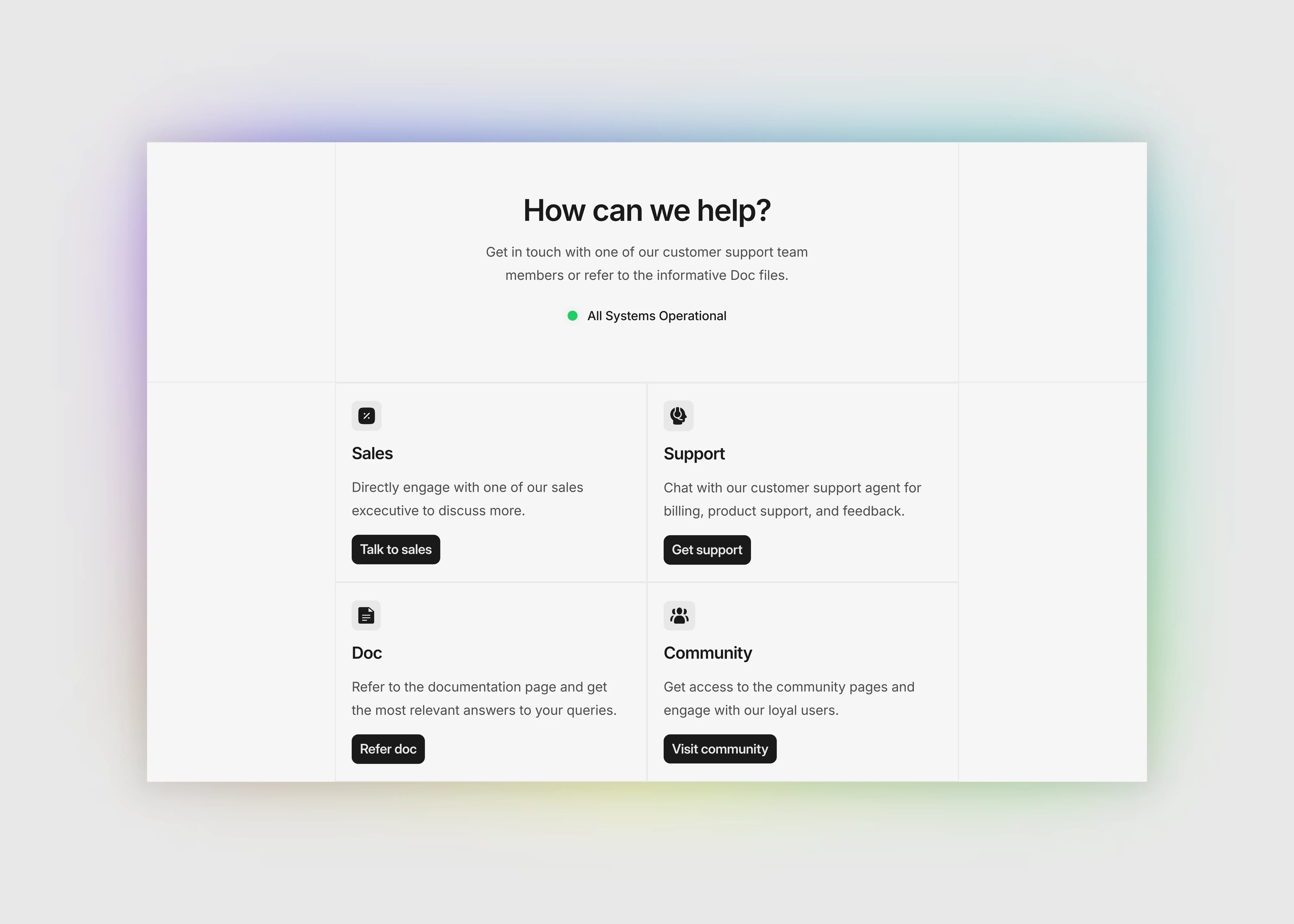
Contact Page for Framer With Support Options
Aug 14, 2026
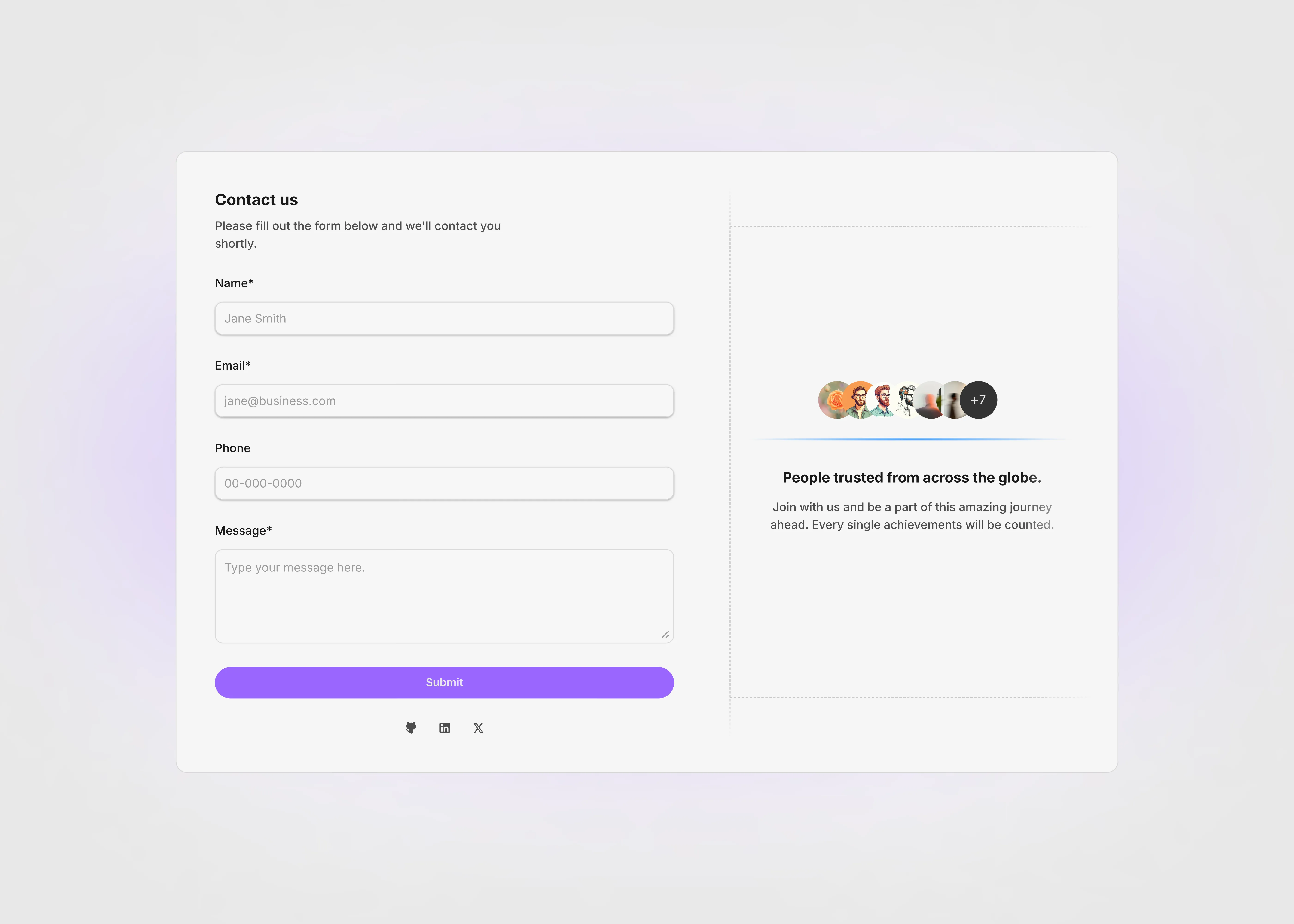
Contact Page Section for Framer Inline Form
Aug 14, 2026
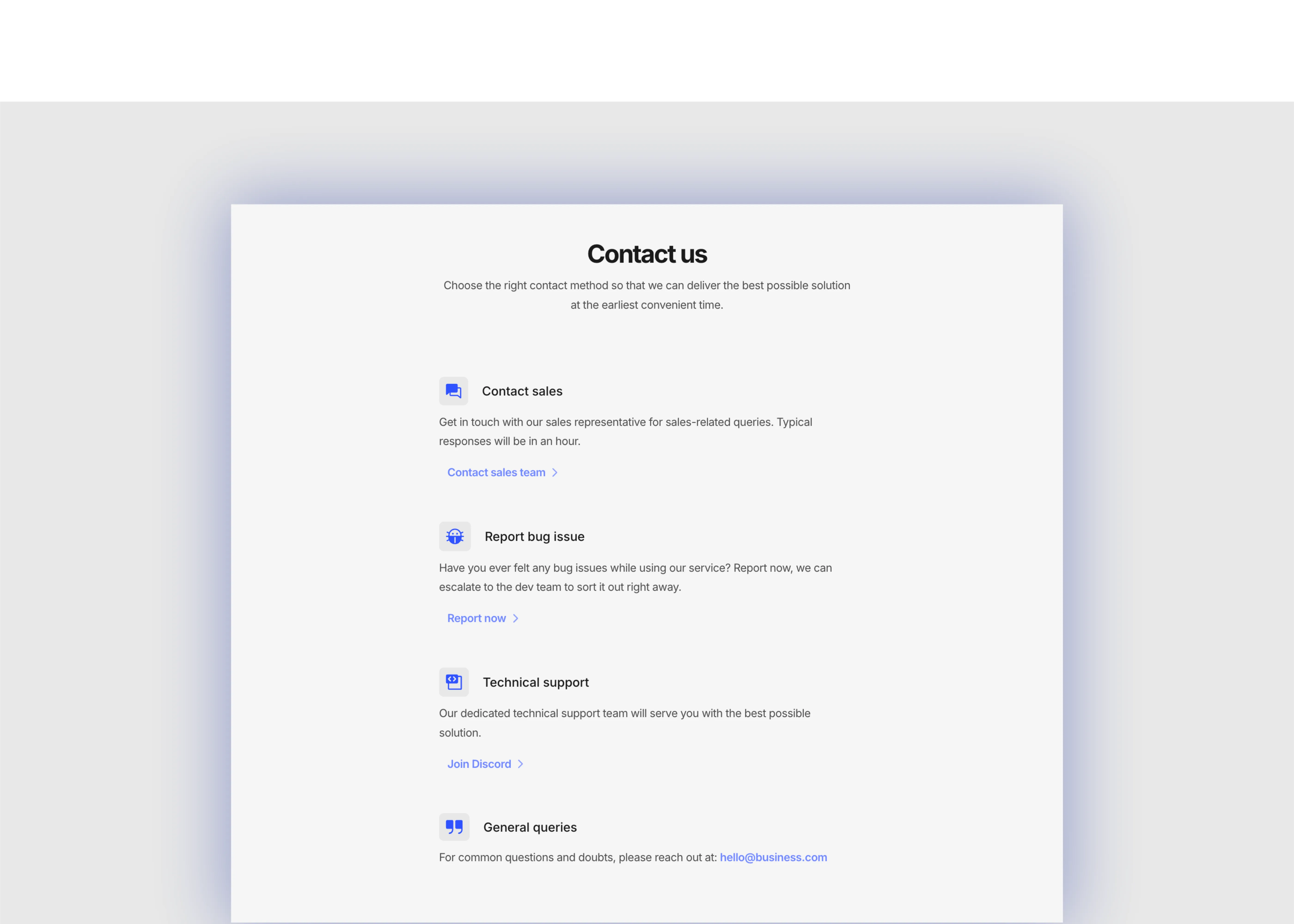
Contact Page Section for Framer Card Layout
Aug 15, 2026
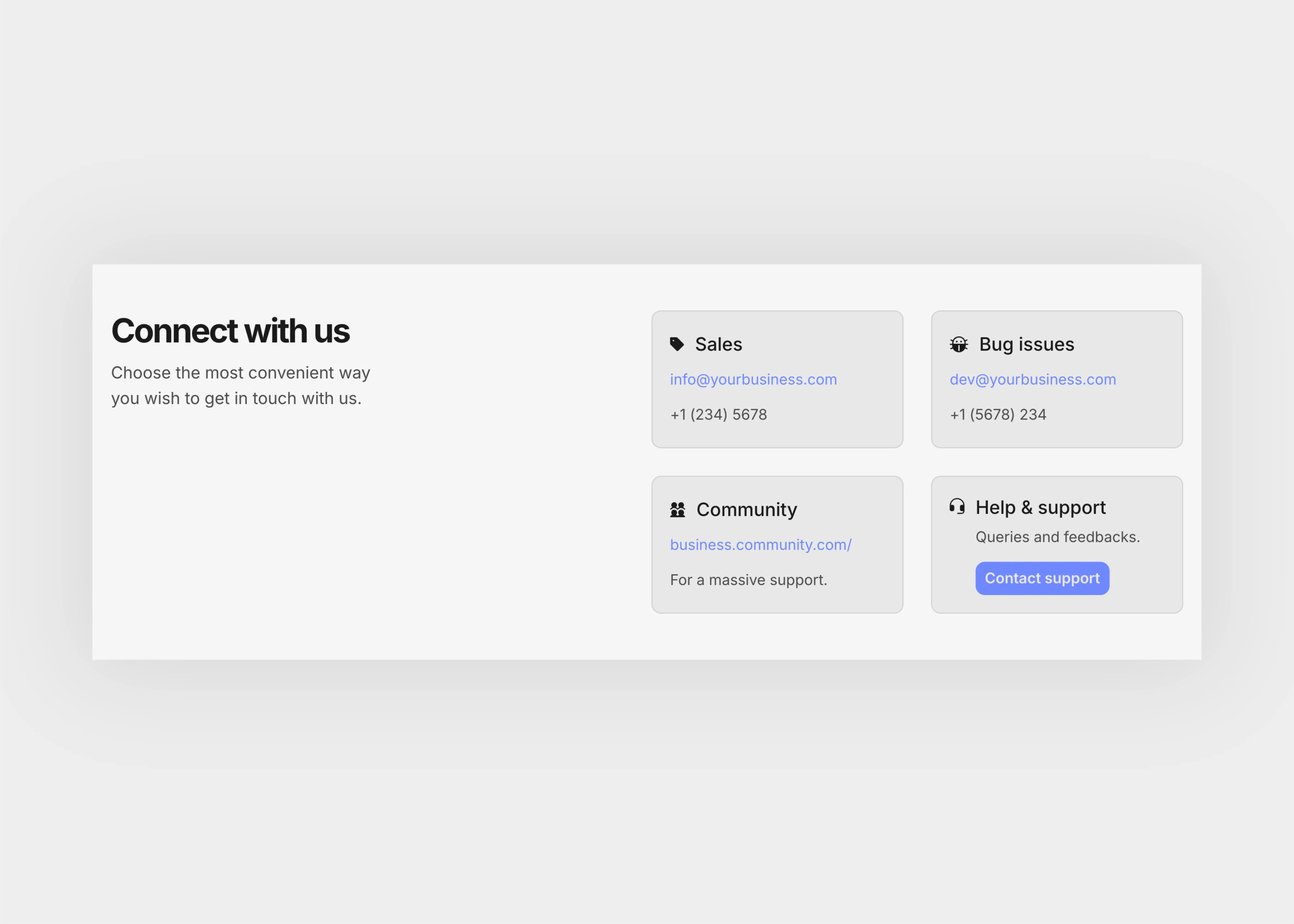
Contact Page for Framer With Social Links
Aug 15, 2026
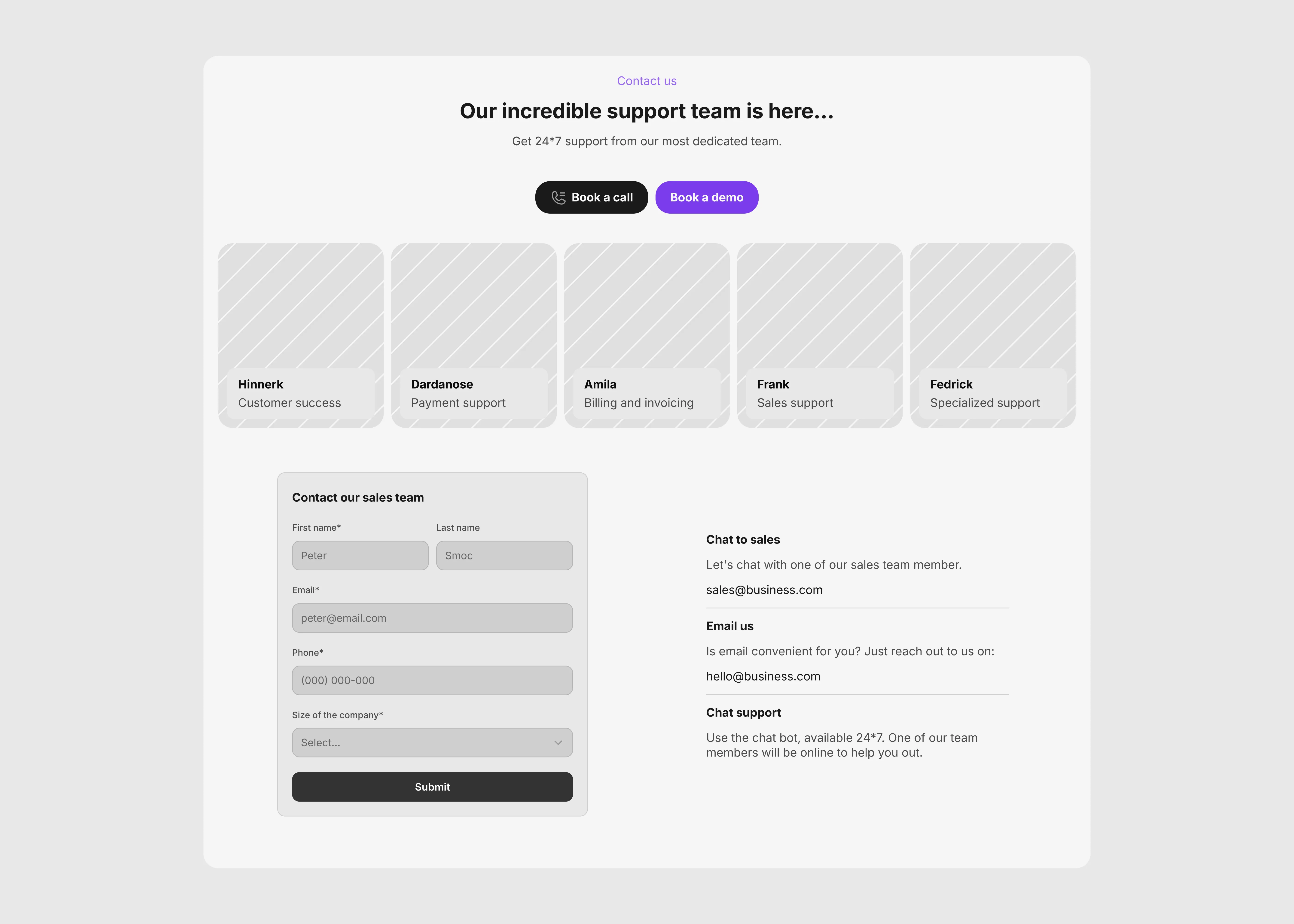
Contact Page for Framer Minimal Layout
Aug 15, 2026
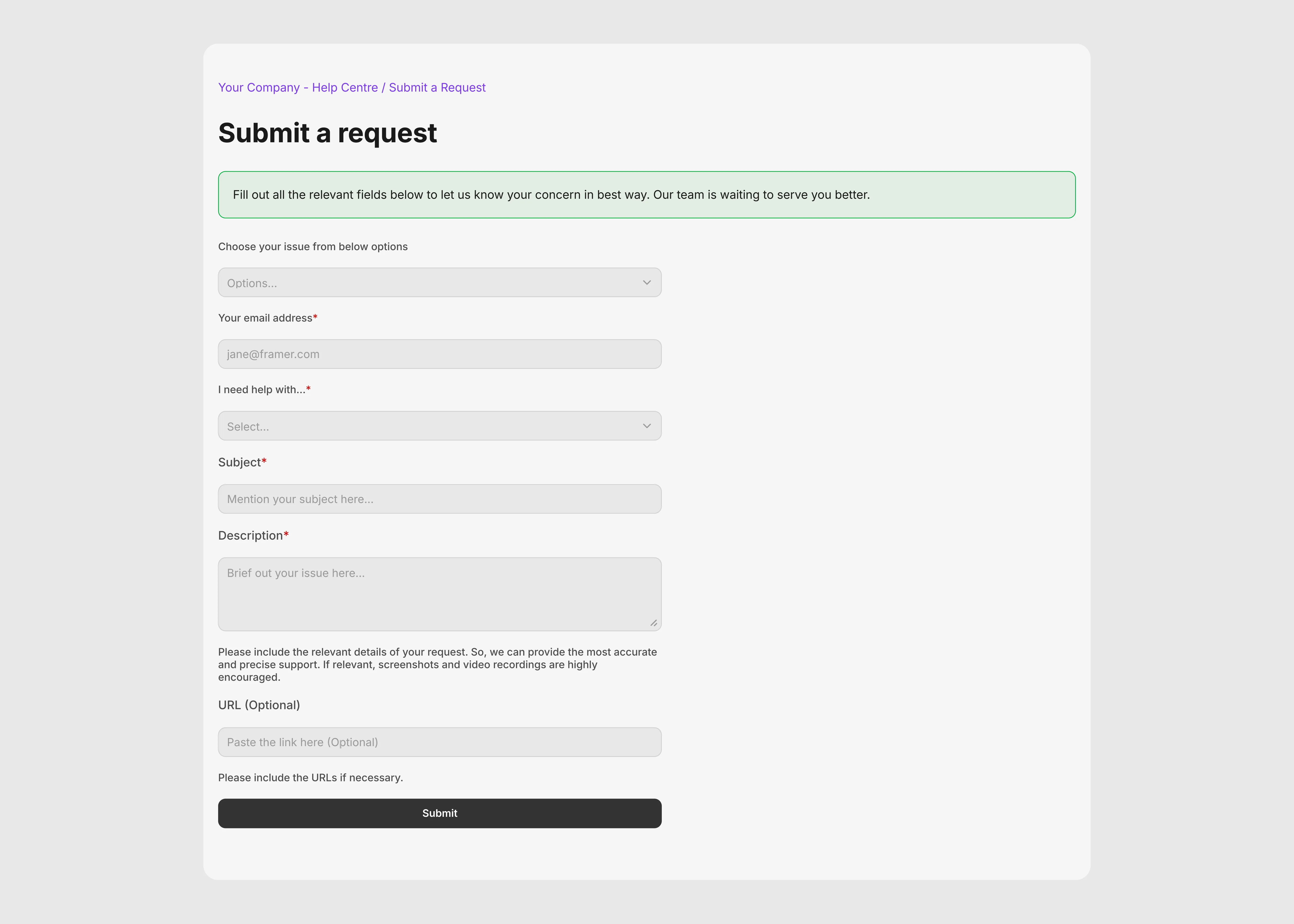
Contact Page Section for Framer Two Column
Aug 15, 2026
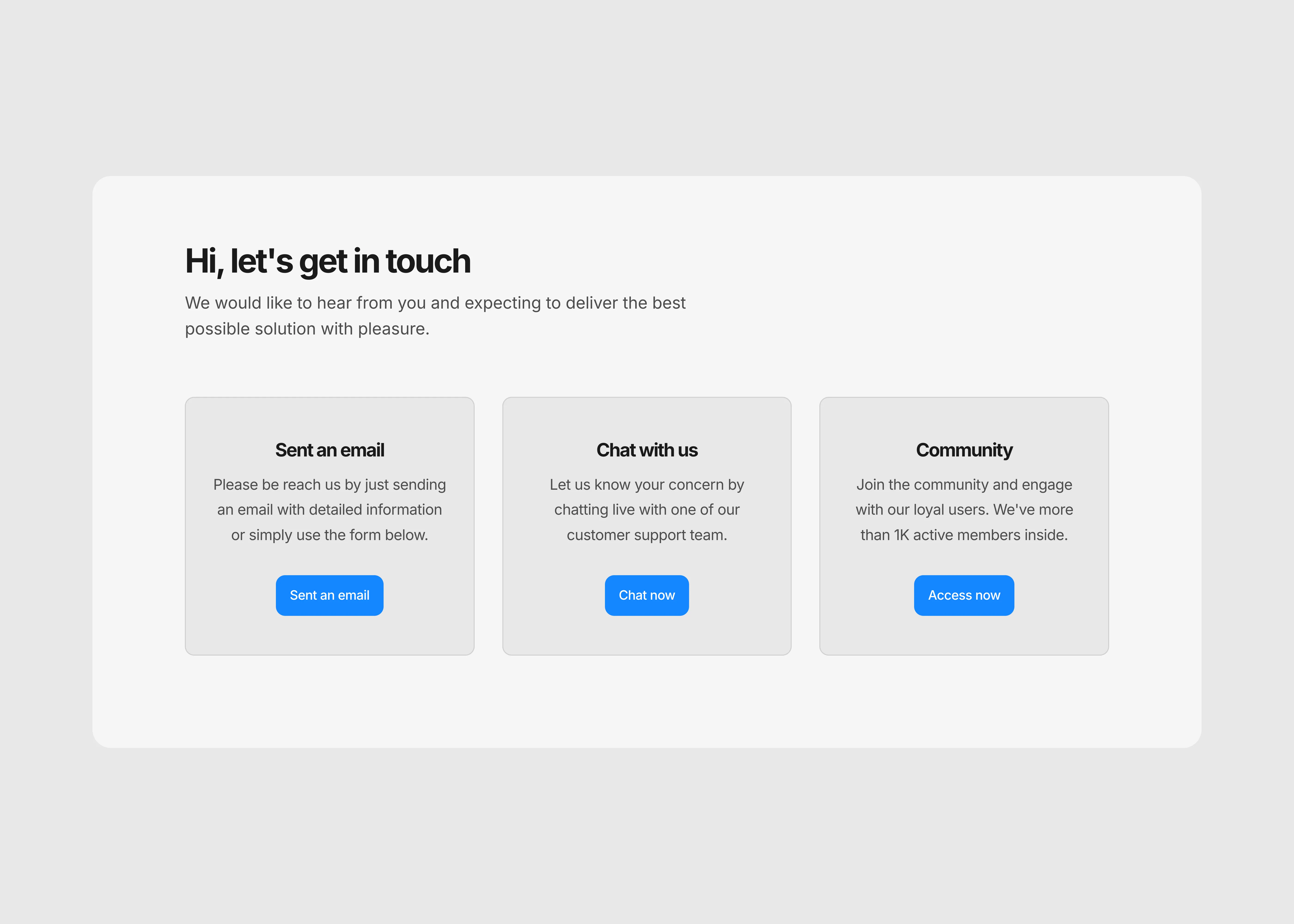
Contact Page for Framer With Office Details
Aug 15, 2026
Load More
Minimal Style Contact Page Section for Framer Portfolio Sites
Oct 26, 2026
Minimal Contact Page Hero Section
Sep 20, 2026
Contact Page for Framer Sidebar Layout
Aug 14, 2026
Contact Page Section for Framer Boxed Layout
Aug 14, 2026
Contact Page Section for Framer Full Width
Aug 14, 2026
Contact Page for Framer With Support Options
Aug 14, 2026
Load More
The FAQs
Have questions? We got you…
Everything you need to know about our product and billing.
" height="145.6071412712696px" id="yQXBZZpLX" width="80.09859047311576px"/></svg>)
What is Framerstack?
Is there a free plan available?
What about the refund policy?
How I can avail my user license?
Still have questions? Or can't find the right answer? Please contact us. One of our customer support team members will get in touch with you.
Join to the community
Stay in the loop with everything you need to know.
By clicking Submit, you agree to our Privacy Policy and to receive our notifications. You can Unsubscribe anytime.
By clicking Submit, you agree to our Privacy Policy and to receive our notifications. You can Unsubscribe anytime.